Disclosure: This post may contain affiliate links. As an Amazon Associate, I earn from qualifying purchases. Learn more.
Choosing the best docking station for your MacBook setup in 2026 can significantly enhance productivity and declutter your workspace. For demanding professionals like video editors, graphic designers, or developers who require multiple high-resolution displays, lightning-fast data transfer, and ample power delivery for their MacBook Pro, investing in a premium Thunderbolt 4 docking station is the optimal choice for future-proofing and performance. If your needs are more modest – perhaps a single external monitor, essential peripherals, and occasional data transfers for a MacBook Air or standard MacBook Pro – a well-chosen USB-C or Thunderbolt 3 dock offers excellent value without compromising core functionality.
A high-quality docking station transforms your MacBook into a powerful desktop workstation. It centralizes connectivity, allowing you to connect external monitors, hard drives, keyboards, mice, Ethernet, and charge your laptop all through a single cable. This guide will walk you through the critical factors to consider, ensuring you select a dock that perfectly matches your workflow, budget, and future expansion needs.
Best Picks (2026)
Quick Answer (TL;DR) (Updated March 02, 2026)
If you want one safe pick: CalDigit TS4 Thunderbolt Dock. If you want a better value: Anker 777 Thunderbolt Docking Station.
How to use this page: scan the comparison table, jump to the matching use case, then open only the listing that fits your setup.
Fast path: choose one track below and ignore the rest.
- Track A (least risk): CalDigit TS4 Thunderbolt Dock
- Track B (better value): Anker 777 Thunderbolt Docking Station
How we picked: research-based selection using manufacturer specs, compatibility notes, and what to verify on the Amazon listing (no hands-on testing claims). Affiliate links may earn us a commission, but rankings are not paid placements.
Start with CalDigit TS4 Thunderbolt Dock on Amazon Prefer value? Open Anker 777 Thunderbolt Docking Station
Skip to a pick: #1 CalDigit TS4 Thunderbolt Dock | #2 Anker 777 Thunderbolt Docking Station | #3 OWC Thunderbolt Dock | #4 Plugable Thunderbolt 4 Dock | #5 Kensington SD5560T Thunderbolt Dock
Head-to-Head: Top Pick vs Best Value
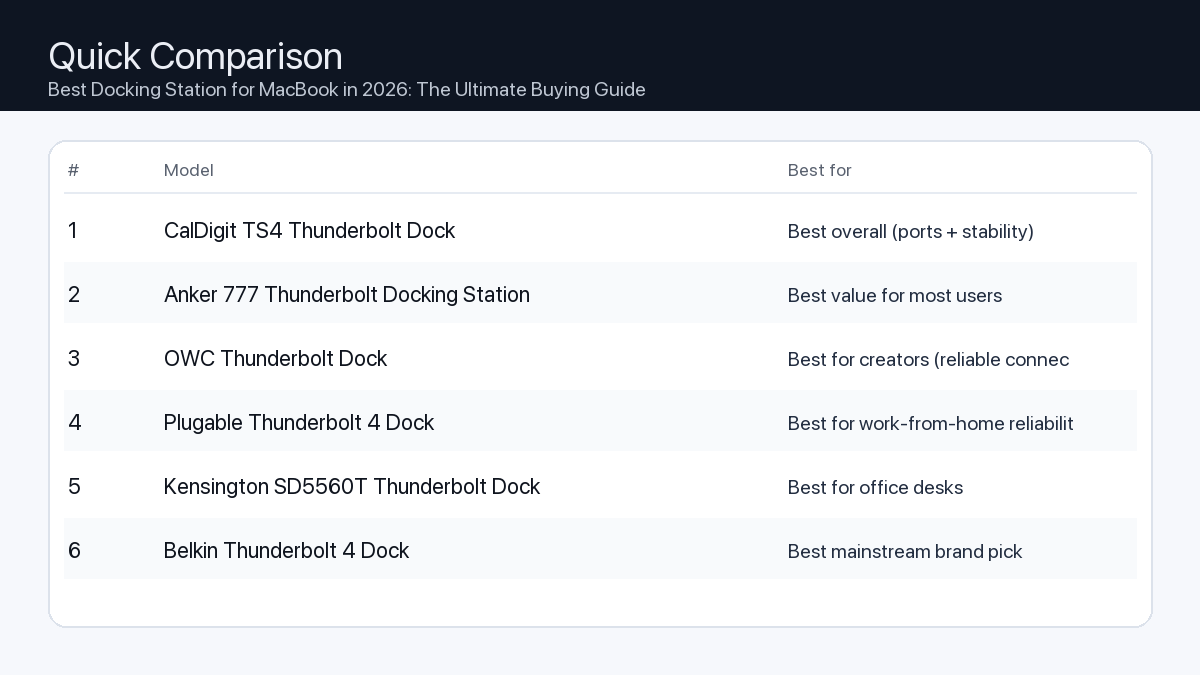
Quick Comparison
Note: Specs and availability change. Always confirm details on the product page.
| Model | Ports | Power | Display | Best for | Details |
|---|---|---|---|---|---|
| CalDigit TS4 Thunderbolt Dock | 18 | 98W | Dual 4K (host-dependent) | Best overall (ports + stability) | Open section |
| Anker 777 Thunderbolt Docking Station | 12 | 90W | Dual 4K (host-dependent) | Best value for most users | Open section |
| OWC Thunderbolt Dock | 11 | 90W | Dual 4K (host-dependent) | Best for creators (reliable connectivity) | Open section |
| Plugable Thunderbolt 4 Dock | 13 | 96W | 8K / dual 4K (host-dependent) | Best for work-from-home reliability | Open section |
| Kensington SD5560T Thunderbolt Dock | 10 | 96W | Dual 4K (host-dependent) | Best for office desks | Open section |
| Belkin Thunderbolt 4 Dock | 12 | 90W | 8K / dual 4K (host-dependent) | Best mainstream brand pick | Open section |
| Razer Thunderbolt 4 Dock Chroma | 10 | 90W | 8K / dual 4K (host-dependent) | Best for gaming setups | Open section |
Our Top Picks
#1. CalDigit TS4 Thunderbolt Dock
Best for: Best overall (ports + stability)

Why it made the list
- Premium build
- Very port-rich
- Great for pro setups
Tradeoffs
- Higher price
- Overkill for simple setups
Key specs (verify on the listing)
| Ports (total) | 18 |
| Host charging | Up to 98W |
| Ethernet | 2.5GbE |
| Card readers | SD UHS-II + microSD UHS-II |
| Display output | DisplayPort 1.4 (display support varies by host) |
Who should buy this
- Video editors and creators running multiple peripherals daily
- Users who want one-cable reliability for a desk setup
- People who need lots of ports and hate dongle chains
Avoid if
- You only need basic ports for one monitor and a couple USB devices
- Your budget is tight and you want the cheapest working option
- You prefer an ultra-compact travel hub (a dock is bigger)
Check price and compatibility for CalDigit TS4 Thunderbolt Dock
Price tip: Prices fluctuate; check Amazon for current deals and compatibility details.
#2. Anker 777 Thunderbolt Docking Station
Best for: Best value for most users

Why it made the list
- Solid everyday dock
- Good port mix
Tradeoffs
- Not the most ports vs premium docks
- May lack niche ports some pros want
Key specs (verify on the listing)
| Ports (total) | 12 |
| Host charging | Up to 90W (dynamic allocation) |
| Display output | 2x HDMI 2.0 (up to 4K@60Hz, host-dependent) |
| Ethernet | Gigabit |
| Card reader | SD (UHS-II) |
Who should buy this
- Most home-office users with a typical dual-monitor + accessories setup
- Budget-conscious buyers who still want a proper dock (not a tiny hub)
- People who want a well-known brand with easy availability
Avoid if
- You need maximum port count for a complex workstation
- You want niche pro features (specialty readers/extra downstream TB ports)
- You only need a small travel adapter (a dock is bigger)
Check price and compatibility for Anker 777 Thunderbolt Docking Station
Price tip: Prices fluctuate; check Amazon for current deals and compatibility details.
#3. OWC Thunderbolt Dock
Best for: Best for creators (reliable connectivity)

Why it made the list
- Strong Mac compatibility
- Creator-friendly ports
Tradeoffs
- Pricing varies by model
- Model lineup can be confusing
Key specs (verify on the listing)
| Ports (total) | 11 |
| Host charging | Up to 90W |
| Thunderbolt | 4x Thunderbolt 4 total (1 upstream + 3 downstream) |
| Ethernet | Gigabit |
| Card reader | SD (UHS-II) |
| USB-A | 3x USB-A (10Gbps) + 1x USB-A (USB 2.0) |
Who should buy this
- Mac-first buyers who value compatibility and support
- Creators who want a balanced dock without going ultra-premium
- People who prefer established pro accessory brands
Avoid if
- You want the simplest buying decision (OWC has multiple similar models)
- You want the cheapest option possible
- You only need a basic hub for travel
Check price and compatibility for OWC Thunderbolt Dock
Price tip: Prices fluctuate; check Amazon for current deals and compatibility details.
#4. Plugable Thunderbolt 4 Dock
Best for: Best for work-from-home reliability

Why it made the list
- Practical port selection
- Good support reputation
Tradeoffs
- Design is more utilitarian
- Less “premium” feel vs aluminum docks
Key specs (verify on the listing)
| Ports (total) | 13 |
| Host charging | 96W certified (100W PD) |
| Display output | 2x HDMI (dual 4K@60Hz, host-dependent) |
| Ethernet | Gigabit |
| Card readers | SD + microSD |
Who should buy this
- Remote workers who just need things to work day after day
- People who value support docs and troubleshooting help
- Users building a stable desk setup for calls, files, and monitors
Avoid if
- You want a luxury look on the desk
- You want a tiny travel adapter
- You want the most ports possible regardless of price
Check price and compatibility for Plugable Thunderbolt 4 Dock
Price tip: Prices fluctuate; check Amazon for current deals and compatibility details.
#5. Kensington SD5560T Thunderbolt Dock
Best for: Best for office desks
Why it made the list
- Desk-friendly
- Good port options
Tradeoffs
- Model lineup can be confusing
- Often priced at a premium for the brand
Key specs (verify on the listing)
| Ports (total) | 10 |
| Host charging | Up to 96W |
| Display output | HDMI 2.0 + Thunderbolt (dual 4K@60Hz on Thunderbolt hosts) |
| Ethernet | Gigabit |
| Card reader | None |
Who should buy this
- Office environments and shared desks
- People who want an established office-accessories brand
- Users who prefer “set it and forget it” desk hardware
Avoid if
- You want the best price-to-ports ratio
- You want a gaming/creator aesthetic
- You want a travel-friendly hub
Check price and compatibility for Kensington SD5560T Thunderbolt Dock
Price tip: Prices fluctuate; check Amazon for current deals and compatibility details.
#6. Belkin Thunderbolt 4 Dock
Best for: Best mainstream brand pick

Why it made the list
- Widely available
- Solid build
Tradeoffs
- Often priced at a premium
- Not always the best value on paper
Key specs (verify on the listing)
| Ports (total) | 12 |
| Host charging | Up to 90W |
| Display output | 2x HDMI 2.0 (plus Thunderbolt ports; host-dependent) |
| Ethernet | Gigabit |
| Card reader | SD |
Who should buy this
- Mainstream buyers who want easy purchasing and returns
- People who prefer big-name accessories
- Users who value availability over min-maxing specs
Avoid if
- You want the absolute best bang-for-buck
- You need specialized ports for a pro workflow
- You only need a small hub
Check price and compatibility for Belkin Thunderbolt 4 Dock
Price tip: Prices fluctuate; check Amazon for current deals and compatibility details.
#7. Razer Thunderbolt 4 Dock Chroma
Best for: Best for gaming setups

Why it made the list
- Desk aesthetic
- Good for multi-peripheral setups
Tradeoffs
- Not the best value
- You may pay extra for the look
Key specs (verify on the listing)
| Ports (total) | 10 |
| Host charging | Up to 90W |
| Thunderbolt | 4x Thunderbolt 4 total (1 upstream + 3 downstream) |
| Ethernet | Gigabit |
| Card reader | SD (UHS-II) |
| Display output | Via Thunderbolt/USB-C display (no built-in HDMI/DP) |
Who should buy this
- RGB / gaming desk setups with many peripherals
- People who care about desk aesthetics as much as function
- Users who want a dock that matches other gaming gear
Avoid if
- You want maximum value per dollar
- You don’t care about aesthetics
- You want a compact travel hub
Check price and compatibility for Razer Thunderbolt 4 Dock Chroma
Price tip: Prices fluctuate; check Amazon for current deals and compatibility details.
Still Can’t Decide?
Quick decision tree:
- Best overall (ports + stability) → CalDigit TS4 Thunderbolt Dock
- Best value for most users → Anker 777 Thunderbolt Docking Station
- Best for creators (reliable connectivity) → OWC Thunderbolt Dock
- Best for work-from-home reliability → Plugable Thunderbolt 4 Dock
- Best for office desks → Kensington SD5560T Thunderbolt Dock
- Best mainstream brand pick → Belkin Thunderbolt 4 Dock
Price tip: prices fluctuate often. If you’re flexible, watch for seasonal sales and compare listings before you buy.
How to Choose the Best MacBook Docking Station in 2026
Selecting the ideal docking station involves understanding your specific requirements for connectivity, power, and display capabilities. Here’s a breakdown of the key considerations:
1. Connectivity & Port Selection
Problem: Your MacBook has limited built-in ports, forcing you to constantly plug and unplug peripherals or rely on multiple dongles, leading to a cluttered and inefficient workspace.
Consequence: Reduced productivity, increased wear and tear on ports, and a frustrating user experience when switching between devices or locations.
Recommendation: Assess your current and future peripheral needs. Look for a dock that offers a comprehensive array of ports relevant to your setup. Prioritize docks with:
- USB-A Ports (USB 3.0/3.2 Gen 2): For keyboards, mice, external hard drives, webcams, and other legacy devices. Aim for at least 2-4.
- USB-C Ports (USB 3.2 Gen 2/Thunderbolt): For modern peripherals, external SSDs, or connecting additional hubs. Look for both data-only and Power Delivery-enabled ports.
- Display Outputs (HDMI, DisplayPort): To connect external monitors. Ensure compatibility with your monitor’s resolution and refresh rate.
- Ethernet Port (Gigabit): For a stable and fast wired internet connection, crucial for large file transfers, streaming, or video conferencing.
- SD/microSD Card Slots: Essential for photographers and videographers for quick media transfer.
- 3.5mm Audio Jack: For headphones, microphones, or external speakers.
Checklist for Port Needs:
- Do I need to connect multiple monitors? (Yes/No)
- How many USB-A devices do I use (keyboard, mouse, printer, webcam)?
- Do I use USB-C external storage or accessories?
- Is a wired Ethernet connection important for my work?
- Do I regularly transfer photos/videos from SD cards?
- Do I need a dedicated audio jack?
2. Power Delivery (PD) Capabilities
Problem: Your docking station doesn’t provide enough power to charge your MacBook efficiently, requiring you to keep your MacBook’s original charger plugged in separately.
Consequence: A less streamlined setup, additional power outlets consumed, and potentially slow charging, especially under heavy load.
Recommendation: Ensure the dock’s upstream Power Delivery (PD) output matches or exceeds your MacBook’s charging requirements. For example:
- MacBook Air (M1/M2/M3): Typically 30W-67W. A dock providing 60W-70W PD is usually sufficient.
- 13/14-inch MacBook Pro: Requires 67W-96W. Look for docks with at least 85W-96W PD.
- 16-inch MacBook Pro: Requires 96W-140W. Opt for docks offering 96W-100W PD to maintain charge under most workloads, though the fastest charging might still require the dedicated charger.
Always check the ‘Upstream Power Delivery’ specification of the dock to confirm it can charge your specific MacBook model effectively.
3. Display Output & Resolution Support
Problem: Your dock limits the resolution, refresh rate, or number of external displays you can use, hindering your visual workspace or demanding applications.
Consequence: Pixelated text, choppy animations, or the inability to create an expansive multi-monitor setup crucial for multitasking.
Recommendation: Consider your display requirements:
- Single Monitor: Most USB-C docks can drive a single 4K display at 60Hz.
- Dual Monitors: Thunderbolt 3/4 docks are typically required for dual 4K displays at 60Hz or higher. Some advanced USB-C docks may support dual 1080p or a single 4K and a single 1080p.
- Higher Resolutions/Refresh Rates: For 5K, 6K, or 8K displays, or high refresh rate gaming monitors (120Hz+), a Thunderbolt 4 dock is almost always necessary due to its superior bandwidth.
Verify the dock’s specifications for the exact display configurations it supports with your specific MacBook model (especially for Apple Silicon Macs).
4. Data Transfer Speed
Problem: Transferring large files to external storage devices takes an excessively long time, impacting productivity for tasks like video editing or data backups.
Consequence: Wasted time waiting for files, frustration during critical workflows.
Recommendation: Choose a dock with appropriate data transfer speeds:
- Thunderbolt 4/3: Offers up to 40Gbps, ideal for external NVMe SSDs, high-speed RAID arrays, and connecting multiple bandwidth-intensive devices.
- USB 3.2 Gen 2 (USB-C/A): Provides 10Gbps, suitable for most external SSDs and fast flash drives.
- USB 3.2 Gen 1 (USB-A): Provides 5Gbps, adequate for standard external hard drives, keyboards, and mice.
For professionals handling large media files, Thunderbolt is a clear advantage.
5. Compatibility (MacBook Model & macOS)
Problem: You purchase a docking station only to find it doesn’t fully work with your specific MacBook model or macOS version.
Consequence: Wasted money, compatibility headaches, and an unusable accessory.
Recommendation: Always verify the dock’s compatibility with:
- Your MacBook Model: Ensure it supports your M-series (M1, M2, M3) or Intel-based MacBook.
- macOS Version: Some docks may require specific macOS versions for full functionality or driver installation.
- Connectivity Type: Confirm your MacBook has a Thunderbolt 3/4 port (USB-C shaped) or a standard USB-C port, and choose a dock that matches. Thunderbolt docks are backward compatible with USB-C for basic functions but offer full performance only with Thunderbolt MacBooks.
6. Ergonomics & Design
Problem: A poorly designed dock can add to desk clutter, have inconvenient port placement, or contribute to overheating.
Consequence: Untidy workspace, difficulty connecting/disconnecting devices, potential reliability issues due to heat.
Recommendation: Consider:
- Size and Footprint: How much desk space can you allocate?
- Port Placement: Are frequently accessed ports (e.g., USB-A, SD card) on the front, while less frequently accessed ports (e.g., display outputs, Ethernet) are on the rear?
- Build Quality: A robust aluminum enclosure often aids in heat dissipation and durability.
- Cable Management: Some docks offer features to help organize cables.
7. Future-Proofing
Problem: Your chosen dock quickly becomes outdated as new MacBook models or peripherals emerge, requiring another costly upgrade soon.
Consequence: Higher long-term expenditure and a less capable setup.
Recommendation: If budget allows, investing in a Thunderbolt 4 docking station offers the best future-proofing. Thunderbolt 4 provides consistent performance, guaranteed 40Gbps bandwidth, robust multi-display support, and broad compatibility with both Thunderbolt and USB-C devices, ensuring it remains relevant for years to come.
Practical Setup Examples
To help illustrate these considerations, here are example scenarios:
Scenario 1: The Demanding Video Editor / Graphic Designer
You work with large 4K/8K video files, high-resolution images, and often require multiple external drives and displays.
- Problem: Limited bandwidth and port availability lead to slow file transfers, laggy timelines, and restricted screen real estate.
- Consequence: Missed deadlines, inefficient workflow, and a constant struggle with data bottlenecks.
- Recommendation: A high-end Thunderbolt 4 docking station. Look for:
- At least 96W-100W Power Delivery.
- Support for dual 4K 60Hz displays (or a single 5K/6K display).
- Multiple Thunderbolt downstream ports for daisy-chaining external NVMe SSDs or RAID enclosures.
- Several USB 3.2 Gen 2 (10Gbps) ports for other fast peripherals.
- Gigabit Ethernet for reliable network access.
- Front-facing SD/microSD card slots for quick media ingestion.
Scenario 2: The Efficient Office Worker / Hybrid Remote Professional
You need to connect a single or dual external monitor, a keyboard, mouse, webcam, and ensure stable internet for video calls and daily tasks.
- Problem: Constant plugging/unplugging, unreliable Wi-Fi during calls, and a desire for a clean desk setup.
- Consequence: Downtime setting up your workspace, interrupted meetings, and a cluttered environment.
- Recommendation: A versatile USB-C or Thunderbolt 3 docking station. Look for:
- 60W-90W Power Delivery.
- Support for a single 4K 60Hz display or dual 1080p/1440p displays.
- Multiple USB-A ports for essential peripherals.
- Gigabit Ethernet.
- Compact design for easy placement or portability.
Scenario 3: The Dedicated Gamer / Content Creator (Streaming)
You use your MacBook for high-refresh-rate gaming, streaming, or content creation with multiple peripherals like capture cards, microphones, and high-speed storage.
- Problem: Insufficient bandwidth for high refresh rate monitors, laggy streaming, and not enough ports for all your gaming/streaming gear.
- Consequence: Suboptimal gaming experience, dropped frames during streams, and input latency.
- Recommendation: A robust Thunderbolt 4 docking station. Look for:
- 96W+ Power Delivery to keep your MacBook charged during intense sessions.
- DisplayPort 1.4 or HDMI 2.1 outputs supporting high refresh rates (120Hz, 144Hz+) at 4K resolution.
- Several USB 3.2 Gen 2 ports for a capture card, external SSDs, and gaming peripherals.
- Multiple Thunderbolt downstream ports for connecting additional high-speed devices.
- Reliable Gigabit Ethernet.
- Adequate cooling for sustained performance.
How We Picked
Our selection process for the best MacBook docking stations in 2026 focuses on a thorough analysis of product specifications and industry standards. We meticulously review key features such as upstream power delivery, total available port types and quantities, display output capabilities (including resolution, refresh rate, and multi-monitor support), and data transfer speeds (Thunderbolt 4, USB 3.2 Gen 2). We prioritize docks that demonstrate strong compatibility with the latest MacBook models (both Apple Silicon M-series and Intel-based) and macOS versions, often noting manufacturer-reported compatibility charts. Our evaluation considers adherence to official Thunderbolt and USB standards, ensuring consistent performance and reliability. We assess build quality, thermal management, and practical design elements like port placement, without conducting hands-on testing. The aim is to identify solutions that offer a balanced combination of performance, comprehensive connectivity, and robust power delivery, catering to a range of professional and personal use cases.
FAQ
- Do I need a Thunderbolt or USB-C docking station?
- It depends on your MacBook model and needs. If your MacBook has Thunderbolt ports (USB-C shaped with a small lightning bolt icon), a Thunderbolt dock will offer superior performance, especially for multiple high-resolution displays, high-speed external storage, and daisy-chaining devices. If your MacBook only has standard USB-C ports or if your needs are simpler (e.g., a single monitor, basic peripherals), a USB-C dock can be a more cost-effective solution.
- Will a docking station charge my MacBook?
- Yes, most modern docking stations designed for MacBooks include Power Delivery (PD) functionality. However, it’s crucial to check the dock’s ‘upstream PD’ wattage. Ensure this wattage meets or exceeds your MacBook’s charging requirements (e.g., 60W for a MacBook Air, 96W for a 14-inch MacBook Pro) to ensure efficient charging through the single USB-C/Thunderbolt cable.
- Can I use a docking station with multiple monitors?
- Yes, many docking stations support multiple external monitors, but capabilities vary significantly. Thunderbolt 4 docks typically offer the best multi-monitor support, often driving dual 4K displays at 60Hz or a single 5K/6K display. USB-C docks may be limited to one 4K display or dual 1080p displays, depending on the dock’s internal chip and your MacBook’s capabilities. Always check the specific display output specifications for the dock and your MacBook model.
- Which should I buy: the #1 pick or the best value pick?
- Choose the #1 pick if your workflow demands maximum performance, extensive port options, future-proofing, and support for high-resolution, multi-monitor setups (e.g., professional video editor, demanding developer). Opt for the best value pick if you need reliable core functionality, a solid selection of essential ports, and adequate power delivery for a single or dual standard monitor setup, without requiring the absolute highest data transfer speeds or bleeding-edge display capabilities.
Final Recommendation
The best docking station for your MacBook setup in 2026 isn’t a one-size-fits-all solution; it’s the one that perfectly aligns with your specific needs and workflow. By carefully considering factors like power delivery, display requirements, port selection, and compatibility, you can select a dock that transforms your MacBook into a truly powerful and organized workstation. Whether you’re a creative professional demanding peak performance or an office worker seeking streamlined connectivity, a well-chosen docking station is an invaluable investment for enhancing productivity and decluttering your digital life.
Related Guides
Keep reading with these related buying guides:
- Best Tablets for Students & Remote Work (2026 Buying Guide)
- Best-Selling Webcam Models on Amazon (2026): A Comprehensive Buying Guide
- Best Power Bank Under $80 in 2026: The Ultimate Buying Guide
- Best Mechanical Keyboard for Minimal Desk Setup (2026): Your Ultimate Buying Guide
- Top iPad Alternatives Worth Buying in 2026: Your Definitive Buying Guide
- Best Webcam for Remote Meetings & Zoom Calls (2026): A Comprehensive Buying Guide