Author: DevicePickr Team

  • Best Robot Vacuum for Pet Hair and Carpets (2026): The Ultimate Buying Guide

    Best Robot Vacuum for Pet Hair and Carpets (2026): The Ultimate Buying Guide

    Disclosure: This post may contain affiliate links. As an Amazon Associate, I earn from qualifying purchases. Learn more.

    Best Robot Vacuum for Pet Hair and Carpets (2026): The Ultimate Buying Guide

    Choosing the ideal robot vacuum for a home with pets and carpets can feel daunting. If you demand the absolute best performance for multi-pet households and deep-pile carpets, prioritize premium models featuring advanced navigation, powerful suction, and sophisticated brush systems. For homes with lighter pet shedding, a mix of low-pile carpets and hard floors, or a desire for excellent daily maintenance without top-tier features, a value-oriented option can deliver impressive results.

    Pet hair on carpets presents unique challenges for any vacuum, let alone an autonomous one. This comprehensive buying guide cuts through the noise, explaining the critical features and considerations necessary to ensure your robot vacuum tackles stubborn pet hair, navigates various carpet types, and maintains a consistently clean home into 2026 and beyond.

    Best Picks (2026)

    Quick Answer (TL;DR) (Updated March 01, 2026)

    If you want one safe pick: Roborock S8 MaxV Ultra. If you want a better value: iRobot Roomba j9+.

    How to use this page: scan the comparison table, jump to the matching use case, then open only the listing that fits your setup.

    Fast path: choose one track below and ignore the rest.

    • Track A (least risk): Roborock S8 MaxV Ultra
    • Track B (better value): iRobot Roomba j9+

    How we picked: research-based selection using manufacturer specs, compatibility notes, and what to verify on the Amazon listing (no hands-on testing claims). Affiliate links may earn us a commission, but rankings are not paid placements.

    Start with Roborock S8 MaxV Ultra on Amazon Prefer value? Open iRobot Roomba j9+

    Skip to a pick: #1 Roborock S8 MaxV Ultra | #2 iRobot Roomba j9+ | #3 Eufy X10 Pro Omni | #4 Dreame L20 Ultra | #5 Shark AI Ultra

    Head-to-Head: Top Pick vs Best Value

    Roborock S8 MaxV Ultra
    Best premium robot vacuum + mop combo

    Read full #1 breakdown

    Go to Amazon: Roborock S8 MaxV Ultra

    iRobot Roomba j9+
    Best for pet-hair focused vacuuming

    Read full best-value breakdown

    Go to Amazon: iRobot Roomba j9+

    Quick Comparison

    Note: Specs and availability change. Always confirm details on the product page.

    Model Best for Details
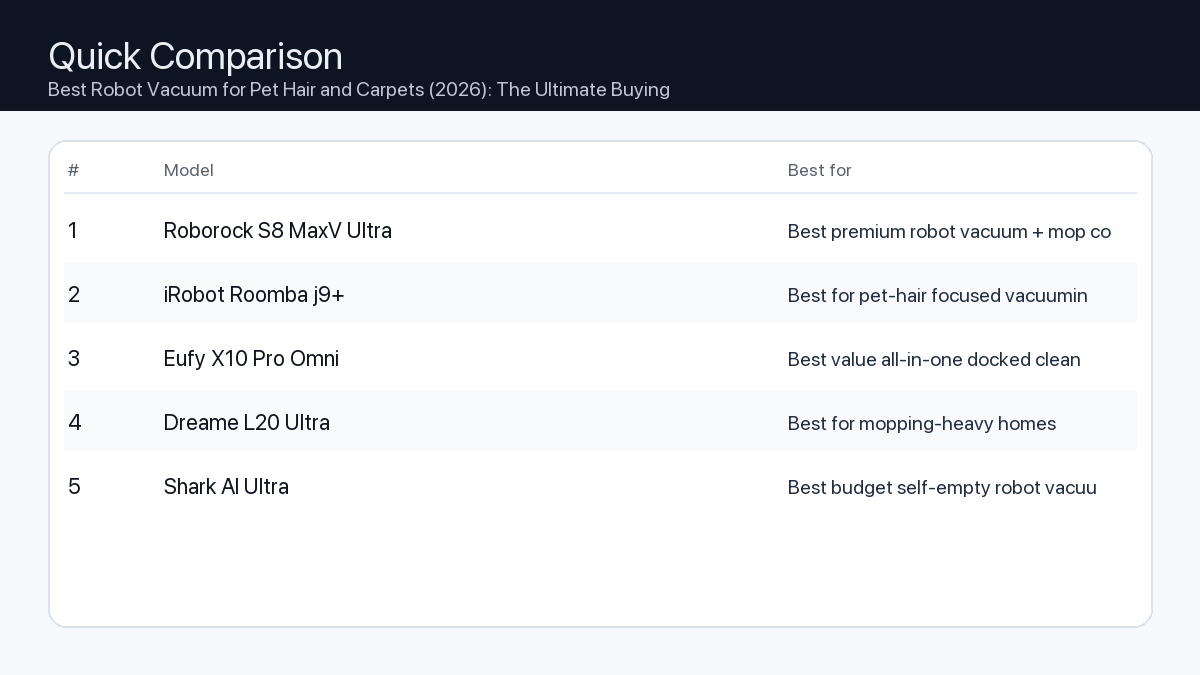
    Roborock S8 MaxV Ultra Best premium robot vacuum + mop combo Open section
    iRobot Roomba j9+ Best for pet-hair focused vacuuming Open section
    Eufy X10 Pro Omni Best value all-in-one docked cleaner Open section
    Dreame L20 Ultra Best for mopping-heavy homes Open section
    Shark AI Ultra Best budget self-empty robot vacuum Open section
    Comparison: Best Robot Vacuum for Pet Hair and Carpets (2026): The Ultimate Buying Guide
    At-a-glance comparison of our picks.

    Our Top Picks

    #1. Roborock S8 MaxV Ultra

    Best for: Best premium robot vacuum + mop combo

    Roborock S8 MaxV Ultra

    Why it made the list

    • Strong navigation
    • Powerful cleaning
    • Advanced dock features

    Tradeoffs

    • Premium pricing

    Who should buy this

    • Busy households wanting near-hands-off cleaning
    • Users with mixed floor types

    Avoid if

    • You need a low-budget cleaner

    Check price and compatibility for Roborock S8 MaxV Ultra

    Price tip: Prices fluctuate; check Amazon for current deals and compatibility details.

    #2. iRobot Roomba j9+

    Best for: Best for pet-hair focused vacuuming

    iRobot Roomba j9+

    Why it made the list

    • Strong suction and brush system
    • Good app controls
    • Reliable brand support

    Tradeoffs

    • Often pricier than value competitors

    Who should buy this

    • Pet owners
    • Users preferring iRobot ecosystem

    Avoid if

    • You want the cheapest self-empty model

    Check price and compatibility for iRobot Roomba j9+

    Price tip: Prices fluctuate; check Amazon for current deals and compatibility details.

    #3. Eufy X10 Pro Omni

    Best for: Best value all-in-one docked cleaner
    Eufy X10 Pro Omni

    Why it made the list

    • Strong value feature set
    • Good navigation
    • All-in-one dock convenience

    Tradeoffs

    • Software polish can vary by updates

    Who should buy this

    • Value buyers wanting premium-style features

    Avoid if

    • You only trust one specific flagship brand

    Check price and compatibility for Eufy X10 Pro Omni

    Price tip: Prices fluctuate; check Amazon for current deals and compatibility details.

    #4. Dreame L20 Ultra

    Best for: Best for mopping-heavy homes

    Dreame L20 Ultra

    Why it made the list

    • Strong mop features
    • Good obstacle handling
    • Powerful app automation

    Tradeoffs

    • Dock size can be large

    Who should buy this

    • Homes with hard floors and frequent mopping needs

    Avoid if

    • You have very limited docking space

    Check price and compatibility for Dreame L20 Ultra

    Price tip: Prices fluctuate; check Amazon for current deals and compatibility details.

    #5. Shark AI Ultra

    Best for: Best budget self-empty robot vacuum

    Shark AI Ultra

    Why it made the list

    • Affordable self-empty option
    • Simple setup
    • Good mainstream availability

    Tradeoffs

    • Not as advanced as ultra-premium models

    Who should buy this

    • Budget-conscious families
    • First-time robot vacuum buyers

    Avoid if

    • You want top-tier mapping and mopping automation

    Check price and compatibility for Shark AI Ultra

    Price tip: Prices fluctuate; check Amazon for current deals and compatibility details.

    Still Can’t Decide?

    Quick decision tree:

    Price tip: prices fluctuate often. If you’re flexible, watch for seasonal sales and compare listings before you buy.

    Ready? Open Roborock S8 MaxV Ultra on Amazon

    How to Choose the Best Robot Vacuum for Pet Hair and Carpets

    Selecting the right robot vacuum requires understanding how different features impact performance, especially when dealing with pet hair and varied carpet textures. Here’s a breakdown of the key considerations:

    Suction Power

    • Problem: Pet hair, particularly from shedding breeds, can embed deeply into carpet fibers, making it challenging for low-powered vacuums to lift.
    • Consequence: Your carpets remain covered in a fine layer of hair and dander, reducing the effectiveness of daily cleaning and potentially aggravating allergies.
    • Recommendation: Look for models with high kPa (kilopascals) ratings, generally 2500 Pa or more, as a baseline. Advanced models often exceed 4000 Pa. Ensure the vacuum can automatically boost suction when it detects carpet.

    Brush System Design

    • Problem: Traditional bristle brushes can quickly tangle with long pet hair, reducing cleaning efficiency and requiring frequent manual cleaning. They might also struggle to agitate dense carpet piles effectively.
    • Consequence: The vacuum becomes less effective, potentially leaving hair behind, and you’ll spend more time detangling brushes than enjoying a clean home.
    • Recommendation: Prioritize robot vacuums with tangle-resistant rubberized or multi-surface brush rolls. Some advanced systems feature self-cleaning brushes or dual-roller designs that are more adept at picking up hair without tangling and agitating carpet fibers.

    Navigation & Mapping

    • Problem: Basic navigation systems can lead to missed spots, repeated cleaning of certain areas, getting stuck, or an inability to navigate complex floor plans.
    • Consequence: Incomplete cleaning, frustration, and the need for manual intervention, defeating the purpose of an autonomous cleaner.
    • Recommendation: Opt for models with advanced navigation technologies like LiDAR (laser navigation) or vSLAM (visual simultaneous localization and mapping). These create accurate maps of your home, allow for multi-floor mapping, enable precise zone cleaning, and support ‘no-go zones’ to avoid pet bowls or sensitive areas.

    Dustbin Capacity & Self-Emptying

    • Problem: Pet hair, dander, and general debris fill standard dustbins very quickly, especially in multi-pet households.
    • Consequence: You’ll need to manually empty the robot’s dustbin frequently, sometimes multiple times per cleaning cycle, diminishing the ‘set-and-forget’ convenience.
    • Recommendation: Seek out robot vacuums with larger onboard dustbins (400ml+) or, ideally, those that come with a self-emptying base station. These stations can hold weeks of debris, significantly reducing your interaction with the robot.

    Filtration System

    • Problem: Pet dander is a common allergen. Standard filters might release fine particles back into the air during cleaning.
    • Consequence: The robot vacuum, while cleaning floors, could inadvertently worsen indoor air quality and trigger allergy symptoms.
    • Recommendation: Ensure the robot vacuum is equipped with a high-efficiency particulate air (HEPA-style) filter. These filters are designed to capture a high percentage of microscopic particles, including pet dander and dust mites.

    App Features & Smart Home Integration

    • Problem: Limited app functionality or lack of smart home integration can make scheduling and control less convenient.
    • Consequence: You might not be able to optimize cleaning schedules, designate specific cleaning zones, or control the vacuum using voice commands, reducing its overall utility.
    • Recommendation: Look for intuitive apps that offer features like custom scheduling, zone cleaning, virtual walls, cleaning history, and integration with popular voice assistants (e.g., Alexa, Google Assistant) for maximum convenience.
    • Common Robot Vacuum Setups for Specific Lifestyles

      Consider your daily routine and home environment to match the robot vacuum’s features with your specific needs.

      For the Video Editor / Remote Worker: Focus on Quiet & Precision

      • Scenario: You spend long hours at home, often in quiet concentration, and need a clean environment without interruptions. Your pets might be nearby, and sudden noises can be disruptive.
      • Key Requirements: Quiet operation, precise scheduling, and effective cleaning without requiring your attention.
      • Checklist:
        • Quiet Mode: Essential for maintaining focus during work hours.

        • Precision Mapping & Zone Cleaning: To clean specific areas without disturbing your workspace.

        • ‘Do Not Disturb’ Zones: To ensure the vacuum avoids sensitive areas or specific times.

        • Large Dustbin or Self-Emptying: Minimizes interaction and allows for extended hands-off operation.

        • Good Obstacle Avoidance: Prevents collisions that can cause noise or disrupt work.

      For the Office Worker (Active Lifestyle): Focus on Hands-Off Reliability

      • Scenario: You’re out of the house most of the day and want to return to a consistently clean home. You need a robot that can handle daily pet hair accumulation with minimal input.
      • Key Requirements: Maximum autonomy, robust performance, and reliability.
      • Checklist:
        • Self-Emptying Station: Crucial for weeks of maintenance-free operation.

        • Robust Navigation: Ensures complete coverage while you’re away, minimizing missed spots or getting stuck.

        • Long Battery Life & Auto-Recharge: Essential for larger homes or comprehensive daily cleaning cycles.

        • Durable Construction: Withstands daily use in a busy home.

        • Excellent Pet Hair Handling: Powerful suction and tangle-resistant brushes for effective daily clean-up.

      For the Gamer / Creator (Tech-Savvy): Focus on Smart Features & Customization

      • Scenario: You appreciate cutting-edge technology and want a robot vacuum that integrates seamlessly with your smart home ecosystem and offers advanced control. You might have unique cleaning needs for a specific room or setup.
      • Key Requirements: Advanced app control, smart home integration, and customizable cleaning routines.
      • Checklist:
        • Advanced App Control: Detailed maps, custom routines, cleaning history, and multi-floor support.

        • Voice Assistant Integration: For convenient control via smart speakers.

        • Precision Mapping & Virtual Walls: To protect gaming setups or creative workspaces.

        • Reactive Obstacle Avoidance: To prevent issues with charging cables, headsets, or other floor items.

        • Over-The-Air (OTA) Updates: Ensures the vacuum stays current with new features and improvements.

      Maintenance Considerations for Pet Owners

      Even the most advanced robot vacuum requires some upkeep, especially with pets. Factor these into your decision:

      • Brush Cleaning Frequency: Expect to clean the main brush roll weekly, or more often for heavy shedding. Models with rubberized brushes tend to be easier to clean.

      • Filter Replacement: HEPA-style filters should be replaced every 1-3 months, depending on usage and pet hair volume, to maintain optimal air quality.

      • Dustbin Emptying: If you don’t have a self-emptying station, you’ll likely need to empty the bin daily, or even mid-cycle in homes with multiple shedding pets.

      • Sensor Cleaning: Periodically wipe down sensors to ensure optimal navigation performance.

      How We Picked

      Our recommendations are based on a thorough analysis of product specifications, manufacturer data, and compatibility notes. We prioritize models that feature high suction ratings (targeting 2500 Pa+), advanced brush designs specifically optimized for pet hair, and sophisticated navigation systems like LiDAR or vSLAM. Robust filtration, ample dustbin capacity (or self-emptying functionality), and intuitive app control are also weighed heavily to ensure a practical and effective solution for pet owners with carpets. We carefully evaluate these technical specifications to identify robot vacuums engineered to meet the unique challenges of pet hair and various carpet types.

      Frequently Asked Questions

      Which should I buy: the #1 pick or the best value pick?

      Choose the #1 pick if you have multiple shedding pets, mostly carpeted floors (especially medium to high pile), or a large home requiring comprehensive, hands-off cleaning. Opt for the best value pick if you have lighter pet shedding, a mix of low-pile carpet and hard floors, or prefer to balance performance with a more accessible price point for effective daily maintenance.

      Do robot vacuums really work on high-pile carpet?

      While some struggle, many modern robot vacuums with powerful suction (2500 Pa+) and advanced brush systems (especially those with adjustable or rubberized rollers) can effectively clean medium-pile carpets. High-pile carpets remain the biggest challenge; look for models specifically designed with strong climbing ability and a history of positive performance in dense carpeting, though even these might not offer the same deep clean as a manual upright vacuum.

      How often should I run my robot vacuum with pets?

      For optimal results in a home with pets and carpets, we recommend running your robot vacuum daily. During peak shedding seasons or for multiple pets, consider scheduling two cleaning cycles per day to keep pet hair accumulation under control.

      What about pet accidents (vomit, urine)?

      Robot vacuums are not designed to clean wet messes or pet accidents. Running a robot vacuum over a liquid or semi-solid accident will spread the mess and potentially damage the robot. Some advanced models include ‘obstacle avoidance’ technology that can detect and avoid solid pet waste, but it’s crucial to manually clean up any accidents before running your robot vacuum.

      Final Recommendation

      Finding the best robot vacuum for pet hair and carpets in 2026 comes down to matching advanced features with your specific home needs. Prioritize powerful suction, specialized tangle-resistant brushes, and intelligent navigation for comprehensive pet hair removal across various carpet types. Whether you opt for a premium model with a self-emptying dock for ultimate convenience or a high-value option that delivers robust daily cleaning, investing in the right technology ensures a cleaner, healthier home environment for both you and your furry companions.

      Related Guides

      Keep reading with these related buying guides:
  • Thunderbolt Dock Buying Guide: Powering Dual-Display Workflows

    Thunderbolt Dock Buying Guide: Powering Dual-Display Workflows

    Disclosure: This post may contain affiliate links. As an Amazon Associate, I earn from qualifying purchases. Learn more.

    Thunderbolt Dock Buying Guide: Powering Dual-Display Workflows

    Navigating the world of Thunderbolt docks for dual-display workflows can be streamlined by understanding your core needs. If you’re a professional requiring maximum bandwidth, high-resolution/refresh rate support, and future-proofing for complex peripherals, a premium Thunderbolt dock offers unparalleled performance and stability. Conversely, if your primary tasks involve standard office applications, 1080p or 1440p displays, and moderate peripheral use, a value-oriented dock can provide excellent functionality without unnecessary cost.

    This buying guide will equip you with the knowledge to make an informed decision, ensuring your dual-monitor setup operates flawlessly with the right Thunderbolt dock.

    Best Picks (2026)

    Quick Answer (TL;DR) (Updated March 01, 2026)

    If you want one safe pick: CalDigit TS4 Thunderbolt Dock. If you want a better value: Anker 777 Thunderbolt Docking Station.

    How to use this page: scan the comparison table, jump to the matching use case, then open only the listing that fits your setup.

    Fast path: choose one track below and ignore the rest.

    • Track A (least risk): CalDigit TS4 Thunderbolt Dock
    • Track B (better value): Anker 777 Thunderbolt Docking Station

    How we picked: research-based selection using manufacturer specs, compatibility notes, and what to verify on the Amazon listing (no hands-on testing claims). Affiliate links may earn us a commission, but rankings are not paid placements.

    Start with CalDigit TS4 Thunderbolt Dock on Amazon Prefer value? Open Anker 777 Thunderbolt Docking Station

    Skip to a pick: #1 CalDigit TS4 Thunderbolt Dock | #2 Anker 777 Thunderbolt Docking Station | #3 OWC Thunderbolt Dock | #4 Plugable Thunderbolt 4 Dock | #5 Kensington SD5560T Thunderbolt Dock

    Head-to-Head: Top Pick vs Best Value

    CalDigit TS4 Thunderbolt Dock
    Best overall (ports + stability)

    Read full #1 breakdown

    Go to Amazon: CalDigit TS4 Thunderbolt Dock

    Anker 777 Thunderbolt Docking Station
    Best value for most users

    Read full best-value breakdown

    Go to Amazon: Anker 777 Thunderbolt Docking Station

    Quick Comparison

    Note: Specs and availability change. Always confirm details on the product page.

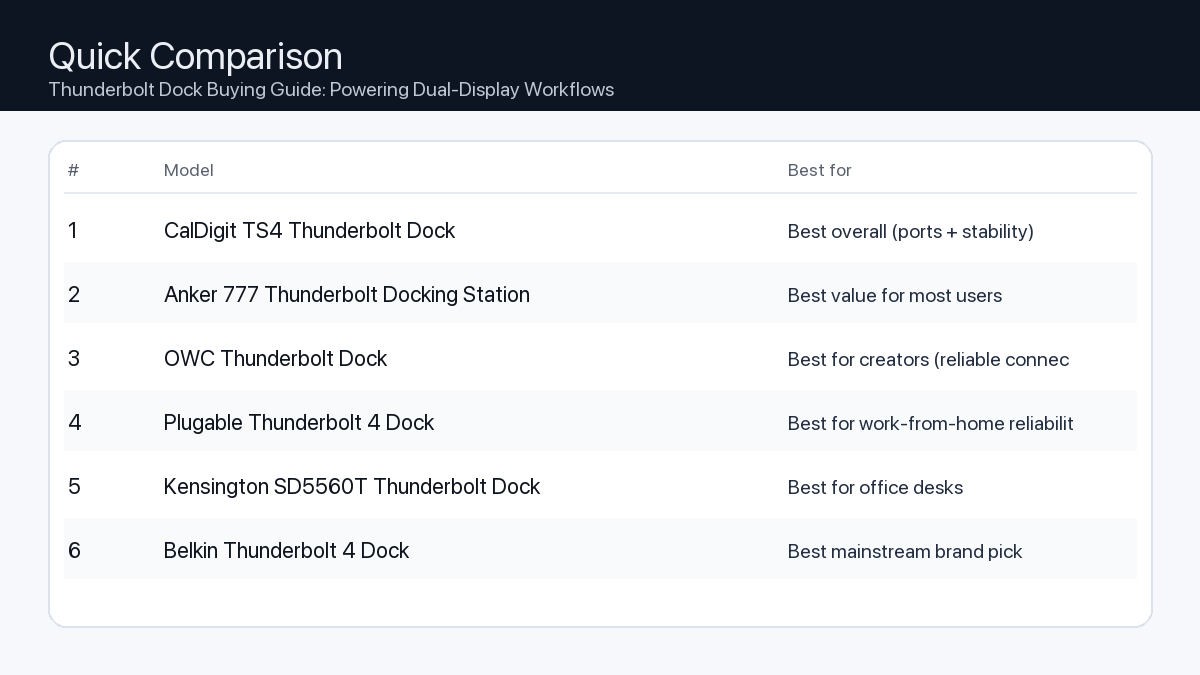
    Model Ports Power Display Best for Details
    CalDigit TS4 Thunderbolt Dock 18 98W Dual 4K (host-dependent) Best overall (ports + stability) Open section
    Anker 777 Thunderbolt Docking Station 12 90W Dual 4K (host-dependent) Best value for most users Open section
    OWC Thunderbolt Dock 11 90W Dual 4K (host-dependent) Best for creators (reliable connectivity) Open section
    Plugable Thunderbolt 4 Dock 13 96W 8K / dual 4K (host-dependent) Best for work-from-home reliability Open section
    Kensington SD5560T Thunderbolt Dock 10 96W Dual 4K (host-dependent) Best for office desks Open section
    Belkin Thunderbolt 4 Dock 12 90W 8K / dual 4K (host-dependent) Best mainstream brand pick Open section
    Razer Thunderbolt 4 Dock Chroma 10 90W 8K / dual 4K (host-dependent) Best for gaming setups Open section
    Comparison: Thunderbolt Dock Buying Guide: Powering Dual-Display Workflows
    At-a-glance comparison of our picks.

    Our Top Picks

    #1. CalDigit TS4 Thunderbolt Dock

    Best for: Best overall (ports + stability)

    CalDigit TS4 Thunderbolt Dock

    Why it made the list

    • Premium build
    • Very port-rich
    • Great for pro setups

    Tradeoffs

    • Higher price
    • Overkill for simple setups

    Key specs (verify on the listing)

    Ports (total) 18
    Host charging Up to 98W
    Ethernet 2.5GbE
    Card readers SD UHS-II + microSD UHS-II
    Display output DisplayPort 1.4 (display support varies by host)

    Who should buy this

    • Video editors and creators running multiple peripherals daily
    • Users who want one-cable reliability for a desk setup
    • People who need lots of ports and hate dongle chains

    Avoid if

    • You only need basic ports for one monitor and a couple USB devices
    • Your budget is tight and you want the cheapest working option
    • You prefer an ultra-compact travel hub (a dock is bigger)

    Check price and compatibility for CalDigit TS4 Thunderbolt Dock

    Price tip: Prices fluctuate; check Amazon for current deals and compatibility details.

    #2. Anker 777 Thunderbolt Docking Station

    Best for: Best value for most users

    Anker 777 Thunderbolt Docking Station

    Why it made the list

    • Solid everyday dock
    • Good port mix

    Tradeoffs

    • Not the most ports vs premium docks
    • May lack niche ports some pros want

    Key specs (verify on the listing)

    Ports (total) 12
    Host charging Up to 90W (dynamic allocation)
    Display output 2x HDMI 2.0 (up to 4K@60Hz, host-dependent)
    Ethernet Gigabit
    Card reader SD (UHS-II)

    Who should buy this

    • Most home-office users with a typical dual-monitor + accessories setup
    • Budget-conscious buyers who still want a proper dock (not a tiny hub)
    • People who want a well-known brand with easy availability

    Avoid if

    • You need maximum port count for a complex workstation
    • You want niche pro features (specialty readers/extra downstream TB ports)
    • You only need a small travel adapter (a dock is bigger)

    Check price and compatibility for Anker 777 Thunderbolt Docking Station

    Price tip: Prices fluctuate; check Amazon for current deals and compatibility details.

    #3. OWC Thunderbolt Dock

    Best for: Best for creators (reliable connectivity)

    OWC Thunderbolt Dock

    Why it made the list

    • Strong Mac compatibility
    • Creator-friendly ports

    Tradeoffs

    • Pricing varies by model
    • Model lineup can be confusing

    Key specs (verify on the listing)

    Ports (total) 11
    Host charging Up to 90W
    Thunderbolt 4x Thunderbolt 4 total (1 upstream + 3 downstream)
    Ethernet Gigabit
    Card reader SD (UHS-II)
    USB-A 3x USB-A (10Gbps) + 1x USB-A (USB 2.0)

    Who should buy this

    • Mac-first buyers who value compatibility and support
    • Creators who want a balanced dock without going ultra-premium
    • People who prefer established pro accessory brands

    Avoid if

    • You want the simplest buying decision (OWC has multiple similar models)
    • You want the cheapest option possible
    • You only need a basic hub for travel

    Check price and compatibility for OWC Thunderbolt Dock

    Price tip: Prices fluctuate; check Amazon for current deals and compatibility details.

    #4. Plugable Thunderbolt 4 Dock

    Best for: Best for work-from-home reliability

    Plugable Thunderbolt 4 Dock

    Why it made the list

    • Practical port selection
    • Good support reputation

    Tradeoffs

    • Design is more utilitarian
    • Less “premium” feel vs aluminum docks

    Key specs (verify on the listing)

    Ports (total) 13
    Host charging 96W certified (100W PD)
    Display output 2x HDMI (dual 4K@60Hz, host-dependent)
    Ethernet Gigabit
    Card readers SD + microSD

    Who should buy this

    • Remote workers who just need things to work day after day
    • People who value support docs and troubleshooting help
    • Users building a stable desk setup for calls, files, and monitors

    Avoid if

    • You want a luxury look on the desk
    • You want a tiny travel adapter
    • You want the most ports possible regardless of price

    Check price and compatibility for Plugable Thunderbolt 4 Dock

    Price tip: Prices fluctuate; check Amazon for current deals and compatibility details.

    #5. Kensington SD5560T Thunderbolt Dock

    Best for: Best for office desks

    Kensington SD5560T Thunderbolt Dock

    Why it made the list

    • Desk-friendly
    • Good port options

    Tradeoffs

    • Model lineup can be confusing
    • Often priced at a premium for the brand

    Key specs (verify on the listing)

    Ports (total) 10
    Host charging Up to 96W
    Display output HDMI 2.0 + Thunderbolt (dual 4K@60Hz on Thunderbolt hosts)
    Ethernet Gigabit
    Card reader None

    Who should buy this

    • Office environments and shared desks
    • People who want an established office-accessories brand
    • Users who prefer “set it and forget it” desk hardware

    Avoid if

    • You want the best price-to-ports ratio
    • You want a gaming/creator aesthetic
    • You want a travel-friendly hub

    Check price and compatibility for Kensington SD5560T Thunderbolt Dock

    Price tip: Prices fluctuate; check Amazon for current deals and compatibility details.

    #6. Belkin Thunderbolt 4 Dock

    Best for: Best mainstream brand pick

    Belkin Thunderbolt 4 Dock

    Why it made the list

    • Widely available
    • Solid build

    Tradeoffs

    • Often priced at a premium
    • Not always the best value on paper

    Key specs (verify on the listing)

    Ports (total) 12
    Host charging Up to 90W
    Display output 2x HDMI 2.0 (plus Thunderbolt ports; host-dependent)
    Ethernet Gigabit
    Card reader SD

    Who should buy this

    • Mainstream buyers who want easy purchasing and returns
    • People who prefer big-name accessories
    • Users who value availability over min-maxing specs

    Avoid if

    • You want the absolute best bang-for-buck
    • You need specialized ports for a pro workflow
    • You only need a small hub

    Check price and compatibility for Belkin Thunderbolt 4 Dock

    Price tip: Prices fluctuate; check Amazon for current deals and compatibility details.

    #7. Razer Thunderbolt 4 Dock Chroma

    Best for: Best for gaming setups

    Razer Thunderbolt 4 Dock Chroma

    Why it made the list

    • Desk aesthetic
    • Good for multi-peripheral setups

    Tradeoffs

    • Not the best value
    • You may pay extra for the look

    Key specs (verify on the listing)

    Ports (total) 10
    Host charging Up to 90W
    Thunderbolt 4x Thunderbolt 4 total (1 upstream + 3 downstream)
    Ethernet Gigabit
    Card reader SD (UHS-II)
    Display output Via Thunderbolt/USB-C display (no built-in HDMI/DP)

    Who should buy this

    • RGB / gaming desk setups with many peripherals
    • People who care about desk aesthetics as much as function
    • Users who want a dock that matches other gaming gear

    Avoid if

    • You want maximum value per dollar
    • You don’t care about aesthetics
    • You want a compact travel hub

    Check price and compatibility for Razer Thunderbolt 4 Dock Chroma

    Price tip: Prices fluctuate; check Amazon for current deals and compatibility details.

    Still Can’t Decide?

    Quick decision tree:

    Price tip: prices fluctuate often. If you’re flexible, watch for seasonal sales and compare listings before you buy.

    Ready? Open CalDigit TS4 Thunderbolt Dock on Amazon

    How to Choose the Best Thunderbolt Dock for Dual-Display Workflows

    A Thunderbolt dock serves as the central hub for your entire workstation, transforming your laptop into a powerful desktop setup with a single cable connection. For dual-display users, the right dock is crucial for managing video output, connecting peripherals, and providing power.

    Understanding Thunderbolt Technology

    Thunderbolt is a high-speed data transfer technology developed by Intel, leveraging the USB-C connector. It offers significant advantages over standard USB-C, including:

    • Bandwidth: Up to 40 Gigabits per second (Gbps) bi-directional bandwidth.
    • Versatility: Carries data, video, audio, and power over a single cable.
    • Daisy Chaining: Allows multiple Thunderbolt devices to be connected in a chain.

    This high bandwidth is what makes Thunderbolt docks ideal for supporting multiple high-resolution displays simultaneously without compromise.

    Key Features for Dual-Display Workflows

    1. Display Output & Resolution Support

    Choosing a dock that properly supports your desired display configuration is paramount. Mismatched capabilities can lead to a frustrating experience.

    • Problem: Your dock claims dual-display support, but only at lower resolutions or refresh rates than your monitors are capable of, or requires specific adapters.
    • Consequence: Blurry text, choppy video, screen flickering, or the inability to use both displays simultaneously at their optimal settings.
    • Recommendation: Verify the dock’s exact display output specifications. Look for support for “dual 4K @ 60Hz” or “dual 1440p @ 120Hz” if those are your monitor’s capabilities. Note whether it uses DisplayPort (DP), HDMI, or USB-C Alt Mode for video output. Thunderbolt 4 docks guarantee support for at least two 4K displays at 60Hz, or one 8K display at 30Hz, offering superior compatibility and performance compared to some Thunderbolt 3 docks which varied widely in display output capabilities.

    Checklist for Display Output:

    • Are the included display ports (HDMI, DisplayPort) compatible with your monitors?
    • Does the dock support your desired resolution (e.g., 1080p, 1440p, 4K) for both displays simultaneously?
    • Does it support your desired refresh rate (e.g., 60Hz, 120Hz, 144Hz) for both displays?
    • Does it explicitly state support for your operating system (macOS, Windows) for dual displays?

    2. Port Selection & Quantity

    Beyond displays, a dock should consolidate all your essential peripherals.

    • Problem: A dock with insufficient or the wrong type of ports means you’ll still need external hubs or be constantly plugging/unplugging devices.
    • Consequence: Cluttered desk, reduced workflow efficiency, and potential bandwidth bottlenecks if using multiple high-speed devices.
    • Recommendation: Inventory your current and future peripherals. Consider the number of USB-A (for older devices), USB-C (for newer devices), Ethernet, and audio ports you need. An SD card reader can be a valuable addition for creators.

    Checklist for Port Selection:

    • Enough USB-A ports for keyboard, mouse, printer, webcam?
    • Enough USB-C ports for external SSDs, phone charging, or other modern peripherals?
    • Reliable Gigabit Ethernet port for stable internet?
    • Audio input/output jacks for headphones/mic?
    • An SD card reader if you work with camera media?

    3. Power Delivery (PD)

    A good dock should charge your laptop efficiently, eliminating the need for a separate power brick.

    • Problem: A dock provides insufficient power delivery for your laptop.
    • Consequence: Your laptop slowly drains battery while connected, or charges very slowly, still requiring you to use its dedicated power adapter.
    • Recommendation: Check your laptop’s power adapter wattage (e.g., 60W, 90W, 100W). Choose a dock that meets or ideally exceeds this requirement. Most Thunderbolt docks offer 60W, 90W, or 100W of power delivery.

    Checklist for Power Delivery:

    • Does the dock’s power delivery wattage meet or exceed your laptop’s charging requirements?

    4. Host Connectivity: Thunderbolt 3 vs. Thunderbolt 4 (and USB4)

    While both Thunderbolt 3 and 4 offer 40Gbps bandwidth, Thunderbolt 4 brings key improvements relevant to docks.

    • Problem: Confusion about compatibility and actual capabilities between different Thunderbolt versions.
    • Consequence: Unexpected limitations on external devices, reduced multi-monitor support, or incompatible accessories.
    • Recommendation: Whenever possible, opt for a Thunderbolt 4 dock. Thunderbolt 4 offers guaranteed minimums for video support (at least two 4K displays), improved security, and better compatibility with a wider range of USB-C devices and accessories, ensuring a more consistent and reliable experience. Thunderbolt 3 docks are still highly capable, but their video output guarantees varied by manufacturer. USB4 is built on the Thunderbolt 3 specification but does not guarantee all Thunderbolt features without specific certification.

    Key Differences for Docks:

    • Thunderbolt 4: Guarantees support for two 4K displays @ 60Hz, consistent 32Gbps PCIe tunnel (for external GPUs/fast storage), and improved USB-C accessory compatibility.
    • Thunderbolt 3: Also 40Gbps, but display support varied (some only supported one 4K or two 1080p displays natively), and PCIe bandwidth was often lower.

    Example Dual-Display Setups and Recommended Dock Focus

    1. The Video Editor / Creative Professional

    • Workflow: Editing 4K/8K video, graphic design, 3D rendering.
    • Typical Setup: Two high-resolution (4K or 5K) monitors, fast external SSDs (NVMe enclosures), audio interface, Wacom tablet or other input devices.
    • Dock Focus:
      • High display bandwidth: Essential for dual 4K/5K displays at fluid refresh rates. Look for docks that specify robust multi-display capabilities.
      • Multiple high-speed USB ports: For external storage that can transfer large files quickly.
      • Robust Power Delivery: To ensure high-performance laptops remain charged during intensive tasks.
      • Potential for an SD/microSD card reader.

    2. The Office Professional / Remote Worker

    • Workflow: Document editing, video conferencing, email, web browsing, data entry.
    • Typical Setup: Two 1080p or 1440p monitors, keyboard, mouse, webcam, occasional USB flash drive.
    • Dock Focus:
      • Sufficient display outputs: Support for dual 1080p/1440p at standard refresh rates (60Hz).
      • Standard USB-A and USB-C ports: For common office peripherals.
      • Reliable Gigabit Ethernet: For stable network connectivity during calls and data transfers.
      • Moderate Power Delivery: Typically 60W-90W is sufficient for most business laptops.

    3. The Gamer / Streamer / Creator (Hybrid)

    • Workflow: Gaming on one display, streaming/chat on the other; content creation, heavy multi-tasking.
    • Typical Setup: One high-refresh-rate monitor (144Hz+) for gaming, another 1080p/1440p monitor for secondary tasks, external storage, high-quality microphone, webcam, capture card.
    • Dock Focus:
      • Specific display output for high refresh rates: Often DisplayPort is preferred for high-refresh-rate monitors. Confirm dock supports the required resolution and refresh rate (e.g., 1440p @ 144Hz) on at least one output.
      • Multiple USB 3.x ports: For high-speed peripherals like external SSDs, webcams, or capture cards that require reliable data transfer.
      • Robust Power Delivery: To maintain laptop charge during gaming or streaming sessions.
      • Ample USB-A and USB-C ports for various accessories.

    How We Picked

    Our selection process focuses on identifying Thunderbolt docks that offer the best balance of features, performance, and compatibility for dual-display workflows, without specific product endorsement. We analyzed manufacturer specifications, focusing on key performance indicators:

    • Thunderbolt Version: Prioritizing Thunderbolt 4 for its guaranteed minimums and improved compatibility.
    • Display Output Combinations: Verifying support for common dual-monitor setups (e.g., dual 4K @ 60Hz, dual 1440p @ 120Hz) and the types of display ports available.
    • Power Delivery (PD) Capabilities: Ensuring sufficient wattage to charge most modern laptops.
    • Port Variety and Quantity: Assessing the range and number of USB-A, USB-C, Ethernet, and other useful ports.
    • Reported Compatibility: Considering broad compatibility with both macOS and Windows systems.

    This approach allows us to recommend categories of docks that meet specific user needs based on their documented technical specifications and typical use cases.

    FAQ

    Q: Which should I buy: the #1 pick or the best value pick?

    A: Your decision hinges on your specific requirements and budget:

    • Choose the #1 Pick if: You demand the highest possible performance, maximum future-proofing, need to connect the most demanding peripherals, or regularly work with high-resolution/high-refresh-rate displays where budget is a secondary concern.
    • Choose the Best Value Pick if: You need solid, reliable performance for typical office and productivity tasks, primarily use 1080p or 1440p displays, or are working within a tighter budget without sacrificing essential functionality.

    Q: Can I use a Thunderbolt dock with a non-Thunderbolt USB-C laptop?

    A: While some basic functionality like USB data and display via DisplayPort Alt Mode might work, you will not experience full Thunderbolt speeds, capabilities, or all the dock’s ports. For full performance, your laptop must have a Thunderbolt port.

    Q: Do I need a special cable for a Thunderbolt dock?

    A: Yes, always use a certified Thunderbolt cable (usually included with the dock, or sold separately as a Thunderbolt 3 or Thunderbolt 4 cable) to ensure full bandwidth and all features, especially for video output and daisy chaining. Standard USB-C cables may not support full Thunderbolt capabilities.

    Final Recommendation

    A high-quality Thunderbolt dock is an investment in productivity and a streamlined workspace, especially for dual-display users. By carefully considering your display needs, required ports, and power delivery, you can select a dock that not only meets your current demands but also offers room to grow. Match the dock’s capabilities to your workflow, and enjoy a powerful, uncluttered setup that enhances your daily tasks.

    Related Guides

    Keep reading with these related buying guides:
  • The Ultimate Buying Guide to Multiport Adapters for Laptops

    The Ultimate Buying Guide to Multiport Adapters for Laptops

    Disclosure: This post may contain affiliate links. As an Amazon Associate, I earn from qualifying purchases. Learn more.

    The Ultimate Buying Guide to Multiport Adapters for Laptops

    Modern laptops, especially ultrabooks, frequently sacrifice traditional ports for sleek designs, leading to a common challenge: limited connectivity. A high-quality multiport adapter is no longer just an accessory; it’s an essential hub that expands your laptop’s capabilities, allowing you to connect external monitors, peripherals, storage, and networks with a single, convenient connection.

    This guide will walk you through the key considerations to ensure you choose an adapter that perfectly complements your workflow and maximizes your productivity, whether you’re a demanding creative, an efficient office worker, or a dedicated gamer.

    Best Picks (2026)

    Quick Answer (TL;DR) (Updated February 28, 2026)

    If you want one safe pick: Anker USB-C Hub (Multiport Adapter). If you want a better value: UGREEN USB-C Hub.

    How to use this page: scan the comparison table, jump to the matching use case, then open only the listing that fits your setup.

    Fast path: choose one track below and ignore the rest.

    • Track A (least risk): Anker USB-C Hub (Multiport Adapter)
    • Track B (better value): UGREEN USB-C Hub

    How we picked: research-based selection using manufacturer specs, compatibility notes, and what to verify on the Amazon listing (no hands-on testing claims). Affiliate links may earn us a commission, but rankings are not paid placements.

    Start with Anker USB-C Hub (Multiport Adapter) on Amazon Prefer value? Open UGREEN USB-C Hub

    Skip to a pick: #1 Anker USB-C Hub (Multiport Adapter) | #2 UGREEN USB-C Hub | #3 Satechi USB-C Multiport Adapter | #4 HyperDrive USB-C Hub | #5 Belkin USB-C Hub

    Head-to-Head: Top Pick vs Best Value

    Anker USB-C Hub (Multiport Adapter)
    Best budget-friendly hub

    Read full #1 breakdown

    Go to Amazon: Anker USB-C Hub (Multiport Adapter)

    Quick Comparison

    Note: Specs and availability change. Always confirm details on the product page.

    Model Ports Power Display Best for Details
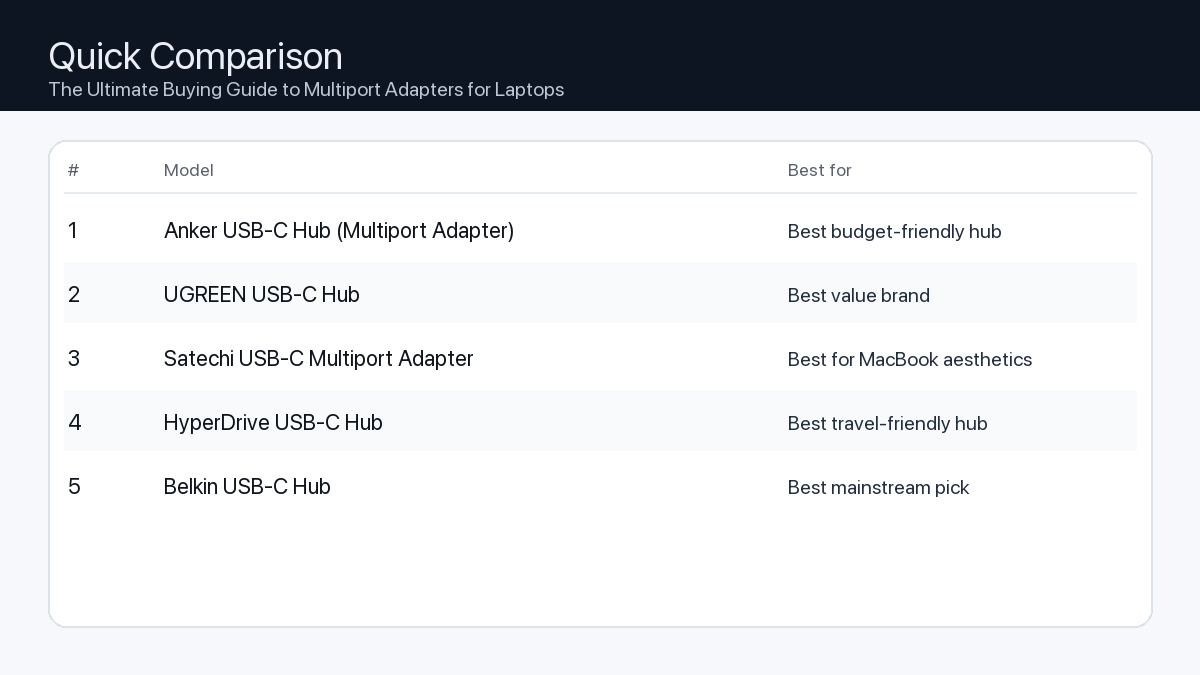
    Anker USB-C Hub (Multiport Adapter) Varies Varies Host-dependent Best budget-friendly hub Open section
    UGREEN USB-C Hub Varies Varies Host-dependent Best value brand Open section
    Satechi USB-C Multiport Adapter Varies Varies Host-dependent Best for MacBook aesthetics Open section
    HyperDrive USB-C Hub Varies Varies Host-dependent Best travel-friendly hub Open section
    Belkin USB-C Hub Varies Varies Host-dependent Best mainstream pick Open section
    Comparison: The Ultimate Buying Guide to Multiport Adapters for Laptops
    At-a-glance comparison of our picks.

    Our Top Picks

    #1. Anker USB-C Hub (Multiport Adapter)

    Best for: Best budget-friendly hub

    Anker USB-C Hub (Multiport Adapter)

    Why it made the list

    • Easy to find
    • Good starter option

    Tradeoffs

    • Specs vary by version
    • Not ideal for heavy desk setups

    Who should buy this

    • Travel and lightweight setups
    • MacBook users who just need HDMI + a couple USB ports
    • Buyers who want a well-known brand at a low price

    Avoid if

    • You need a rock-solid one-cable workstation (get a dock)
    • You need many ports and long-term desk stability
    • You rely on high-speed storage and want maximum bandwidth

    Check price and compatibility for Anker USB-C Hub (Multiport Adapter)

    Price tip: Prices fluctuate; check Amazon for current deals and compatibility details.

    #2. UGREEN USB-C Hub

    Best for: Best value brand

    UGREEN USB-C Hub

    Why it made the list

    • Good price/performance
    • Many variants

    Tradeoffs

    • Need to pick the right variant
    • Model naming can be confusing

    Who should buy this

    • Value seekers comfortable choosing the right version
    • Users who want better features than the cheapest hubs
    • People who want a hub for occasional desk use + travel

    Avoid if

    • You want the simplest one-click decision with one exact model
    • You need pro-grade stability for all-day dock use
    • You want guaranteed maximum display support for every Mac (confirm first)

    Check price and compatibility for UGREEN USB-C Hub

    Price tip: Prices fluctuate; check Amazon for current deals and compatibility details.

    #3. Satechi USB-C Multiport Adapter

    Best for: Best for MacBook aesthetics

    Satechi USB-C Multiport Adapter

    Why it made the list

    • Matches Mac design
    • Common pick for Mac users

    Tradeoffs

    • Pricier than budget hubs
    • Still a hub (not a full dock)

    Who should buy this

    • Mac users who care about a clean, matching look
    • People who want a simple hub for meetings/travel
    • Users who want a popular, proven style of adapter

    Avoid if

    • You want the lowest price possible
    • You need a full docking station replacement
    • You want lots of ports for a complex workstation

    Check price and compatibility for Satechi USB-C Multiport Adapter

    Price tip: Prices fluctuate; check Amazon for current deals and compatibility details.

    #4. HyperDrive USB-C Hub

    Best for: Best travel-friendly hub

    HyperDrive USB-C Hub

    Why it made the list

    • Compact
    • Popular among travelers

    Tradeoffs

    • Port layout varies
    • Performance depends on the exact model

    Who should buy this

    • Frequent travelers who want a compact adapter
    • Minimal setups: one display + a couple accessories
    • People who want a brand known for travel hubs

    Avoid if

    • You want maximum stability for an all-day desk dock
    • You need many ports and maximum bandwidth
    • You don’t want to think about model variants

    Check price and compatibility for HyperDrive USB-C Hub

    Price tip: Prices fluctuate; check Amazon for current deals and compatibility details.

    #5. Belkin USB-C Hub

    Best for: Best mainstream pick

    Belkin USB-C Hub

    Why it made the list

    • Easy returns
    • Brand support

    Tradeoffs

    • Often more expensive
    • Not always best value on paper

    Who should buy this

    • Mainstream buyers who want an easy purchase + returns
    • People who prefer established accessory brands
    • Users who want a simple adapter for common ports

    Avoid if

    • You want maximum value per dollar
    • You need a full dock replacement
    • You need very high-speed storage workflows (confirm specs first)

    Check price and compatibility for Belkin USB-C Hub

    Price tip: Prices fluctuate; check Amazon for current deals and compatibility details.

    Still Can’t Decide?

    Quick decision tree:

    Price tip: prices fluctuate often. If you’re flexible, watch for seasonal sales and compare listings before you buy.

    Ready? Open Anker USB-C Hub (Multiport Adapter) on Amazon

    How to Choose Your Ideal Multiport Adapter

    Understanding Your Connectivity Needs

    When selecting a multiport adapter, your choice should hinge on your laptop’s capabilities and your daily workflow. For users seeking uncompromising performance, high-resolution multi-monitor support, and robust power delivery for demanding tasks like video editing or high-end gaming, prioritizing a premium adapter with Thunderbolt 3/4 compatibility and advanced features is often the wisest choice. Conversely, if your needs revolve around essential connectivity—such as connecting a mouse, keyboard, single external display, and occasional data transfer—a value-focused multiport adapter will likely offer excellent utility without the higher investment.

    Key Factors to Consider

    1. Port Selection & Versatility

    Problem: Your laptop has limited or incorrect port types, preventing you from connecting essential peripherals like external hard drives, keyboards, or projectors.

    Consequence: You’re constantly swapping devices, unable to use all your tools simultaneously, or forced to buy multiple single-function dongles.

    Recommendation: Create a list of all devices you regularly connect. Look for adapters with a balanced mix of USB-A (for older peripherals), USB-C (for modern accessories and data transfer), HDMI/DisplayPort (for monitors), Ethernet (for stable internet), and SD/microSD card readers (for photographers/videographers).

    Checklist:

    • ✓ 2-3 USB-A ports (USB 3.0 or higher)
    • ✓ At least 1 USB-C data port (USB 3.2 Gen 2 for 10Gbps)
    • ✓ 1+ HDMI/DisplayPort (4K@60Hz or higher)
    • ✓ Ethernet port (Gigabit recommended)
    • ✓ SD and/or microSD card slots
    • ✓ 3.5mm audio jack (if needed)

    2. Power Delivery (PD) Capabilities

    Problem: Your laptop requires charging, but the adapter either doesn’t support passthrough charging or provides insufficient wattage.

    Consequence: Your laptop battery drains even when connected to power, or you need to carry an extra charger, negating the adapter’s convenience.

    Recommendation: Check your laptop’s power adapter for its wattage (e.g., 60W, 90W, 100W). Select a multiport adapter that supports at least that much Power Delivery (PD) via its USB-C input port. Remember that some wattage will be consumed by the adapter and connected peripherals, so aim for a slightly higher PD rating if possible.

    Checklist:

    • ✓ PD input matches or exceeds laptop’s required wattage (e.g., 60W, 85W, 100W)
    • ✓ Clear indication of “passthrough charging” support

    3. Display Output Quality & Configuration

    Problem: Your external monitor displays at a low resolution or refresh rate, flickers, or you can’t connect multiple displays.

    Consequence: Poor visual experience, reduced productivity for tasks requiring screen real estate, or inability to use your desired monitor setup.

    Recommendation: For a single 4K monitor, ensure the adapter specifies 4K@60Hz support via HDMI 2.0 or DisplayPort 1.2/1.4. For dual monitors, look for adapters explicitly stating “dual display” or “MST (Multi-Stream Transport)” capabilities, and verify the maximum resolution/refresh rate for each connected display.

    Checklist:

    • ✓ HDMI 2.0+ or DisplayPort 1.2+ for 4K@60Hz
    • ✓ Support for multiple displays (if needed)
    • ✓ Verify specific resolution/refresh rate for dual monitor setups

    4. Data Transfer Speeds

    Problem: Moving large files from external drives or cameras takes excessively long, or high-bandwidth peripherals (like high-res webcams) experience lag.

    Consequence: Wasted time, frustration, and a bottleneck in your workflow.

    Recommendation: Prioritize adapters with USB 3.2 Gen 2 (10Gbps) ports for high-speed external SSDs or storage. If you use older USB 3.0 (5Gbps) devices, ensure adequate ports are available. For extremely demanding tasks like multi-monitor 8K displays or eGPUs, a Thunderbolt 3 or 4 adapter is essential due to its 40Gbps bandwidth.

    Checklist:

    • ✓ USB-A ports are at least USB 3.0 (5Gbps)
    • ✓ USB-C data ports are USB 3.2 Gen 2 (10Gbps) or Thunderbolt (40Gbps)

    5. Build Quality & Portability

    Problem: The adapter feels flimsy, overheats, is too bulky for travel, or has a cable that’s too short/long for your setup.

    Consequence: Premature failure, inconvenience, or an untidy workspace.

    Recommendation: Look for adapters with durable materials like aluminum alloy, which aids in heat dissipation. Consider its size and weight if you travel frequently. Pay attention to the length and flexibility of the integrated USB-C cable to ensure it fits comfortably with your laptop and desk setup.

    Checklist:

    • ✓ Durable material (e.g., aluminum casing)
    • ✓ Compact and lightweight for travel
    • ✓ Appropriate integrated cable length

    6. Host Compatibility: USB-C vs. Thunderbolt

    Problem: You buy an adapter with advanced features, but your laptop doesn’t support them, leading to limited functionality.

    Consequence: Wasted money on an underutilized adapter, frustration with unfulfilled promises.

    Recommendation: Understand your laptop’s USB-C port capabilities. Not all USB-C ports are created equal. Some support only USB 3.0 data, others support DisplayPort Alternate Mode (video out) and Power Delivery, and only specific ports also support Thunderbolt 3 or 4. If your laptop has a Thunderbolt port, a Thunderbolt adapter will offer the highest performance and versatility. Otherwise, a high-quality USB-C adapter will suffice.

    Checklist:

    • ✓ Confirm if your laptop’s USB-C port supports DisplayPort Alt Mode
    • ✓ Confirm if your laptop’s USB-C port is also a Thunderbolt port (look for the lightning bolt icon)

    Example User Setups

    1. The Video Editor / Creative Professional

    Needs: High-bandwidth data transfer, multiple high-resolution displays, fast memory card access, robust power delivery.

    Ideal Adapter Features: Thunderbolt 3/4 compatibility (40Gbps), dual 4K@60Hz display outputs (HDMI 2.0 or DisplayPort 1.4), multiple USB 3.2 Gen 2 (10Gbps) ports for external SSDs, UHS-II SD/microSD card readers, 100W+ Power Delivery passthrough, Gigabit Ethernet.

    Why: Ensures smooth playback of high-res footage, quick transfer of large files, and stable, high-performance peripheral connectivity, all while keeping the laptop charged.

    2. The Office Worker / Remote Professional

    Needs: Reliable single external display, essential peripheral connections (mouse, keyboard, webcam), stable network connection, moderate power delivery.

    Ideal Adapter Features: USB-C connectivity, 4K@60Hz HDMI 2.0 or DisplayPort 1.2 output, 2-3 USB-A 3.0 ports, Gigabit Ethernet, 60-85W Power Delivery passthrough.

    Why: Provides all necessary connections for a productive workstation setup, ensuring consistent display output and network stability for video calls and data access.

    3. The Gamer / Creator (Hybrid Use)

    Needs: High refresh rate display, fast and stable wired internet, quick access for game clips/assets, low-latency peripheral support, adequate power.

    Ideal Adapter Features: USB-C or Thunderbolt compatibility, HDMI 2.0 (4K@60Hz or 1440p@120Hz+) or DisplayPort 1.4, Gigabit Ethernet, at least 2 USB 3.2 Gen 2 (10Gbps) ports for external storage/peripherals, UHS-I/II SD card reader, 85W+ Power Delivery passthrough.

    Why: Supports high-performance gaming monitors, ensures minimal latency for competitive gaming via wired Ethernet, and facilitates quick access to captured footage and game assets.

    How We Identified Top Multiport Adapter Options

    Our selection process focuses on objective technical specifications, documented compatibility, and user-reported performance trends. We meticulously analyze product spec sheets to verify claims regarding port types, data transfer speeds (e.g., USB 3.2 Gen 2, Thunderbolt 4), Power Delivery wattage, and display output capabilities (resolution and refresh rate). We prioritize adapters from reputable manufacturers known for adherence to industry standards.

    Key considerations include:

    • Advertised Port Performance: Verifying specified speeds for USB, Ethernet, and memory card readers.
    • Display Output Specifications: Confirming supported resolutions and refresh rates for single and multi-monitor setups.
    • Power Delivery Ratings: Ensuring adapters offer sufficient passthrough charging for various laptop models.
    • Compatibility Notes: Reviewing manufacturer-provided compatibility lists and addressing reported issues with specific laptop brands or operating systems.
    • Build Materials: Assessing the use of durable materials like aluminum for heat dissipation and longevity.

    This data-driven approach allows us to recommend options based on their potential to deliver on their technical promises, without relying on hands-on product testing which can introduce variability based on individual setup configurations.

    FAQ

    Which should I buy: the #1 pick or the best value pick?

    Choose the #1 pick if your workflow demands the absolute highest performance, reliability, and future-proofing—especially if you frequently use multiple high-resolution monitors, transfer very large files, or require extensive power delivery for a high-end laptop. Opt for the best value pick if your needs are more moderate, focusing on essential connectivity (a single external monitor, standard peripherals, and occasional data transfer) and you want to achieve solid performance without the premium investment. Always match the adapter’s capabilities to your specific, current, and anticipated needs.

    What’s the difference between a USB-C hub and a Thunderbolt dock/adapter?

    While both use a USB-C connector, Thunderbolt adapters leverage Intel’s Thunderbolt technology, offering significantly higher bandwidth (up to 40Gbps for Thunderbolt 3/4) compared to standard USB-C hubs (typically 5-10Gbps). This extra bandwidth allows Thunderbolt adapters to support more demanding setups, such as multiple 4K displays, external GPUs, and faster data transfer simultaneously without compromise. A USB-C hub is excellent for basic expansion, while a Thunderbolt adapter is designed for maximum performance and versatility on Thunderbolt-enabled laptops.

    Will a multiport adapter slow down my laptop?

    A well-designed multiport adapter, when connected to a compatible USB-C or Thunderbolt port, generally won’t “slow down” your laptop’s core performance. However, if you overload the adapter with many high-bandwidth devices (e.g., multiple 4K monitors, fast external SSDs, and Ethernet all running simultaneously on a standard USB-C adapter), you might experience performance limitations in those connected devices due to shared bandwidth. This is particularly noticeable with non-Thunderbolt hubs. Choosing an adapter with sufficient bandwidth for your specific connected devices is key to avoiding bottlenecks.

    Final Recommendation

    Choosing the right multiport adapter is a strategic decision that significantly impacts your laptop’s versatility and your daily productivity. By carefully assessing your current and future needs regarding port types, power delivery, display capabilities, and data transfer speeds, you can select an adapter that not only solves your connectivity challenges but also enhances your overall computing experience. Remember to prioritize compatibility with your laptop’s USB-C or Thunderbolt port to unlock the full potential of your chosen hub.

    Related Guides

    Keep reading with these related buying guides:
  • Best-Selling Gaming Keyboards of 2026: Your Ultimate Buying Guide

    Best-Selling Gaming Keyboards of 2026: Your Ultimate Buying Guide

    Disclosure: This post may contain affiliate links. As an Amazon Associate, I earn from qualifying purchases. Learn more.

    Best-Selling Gaming Keyboards of 2026: Your Ultimate Buying Guide

    Navigating the gaming keyboard market in 2026 can be a complex task, with innovations in switch technology, connectivity, and customization constantly evolving. For the dedicated esports athlete, competitive gamer, or content creator who demands peak performance, precision, and durability, investing in a premium model offers cutting-edge features, superior build quality, and extensive customization options. These keyboards are engineered for competitive advantage and long-term reliability.

    Conversely, for casual gamers, those on a budget, or individuals seeking a reliable daily driver with solid gaming capabilities, a value-oriented model provides an excellent balance of performance and affordability. These selections offer robust features and a satisfying user experience without the highest price tag, ensuring you get a capable tool for both play and productivity.

    Best Picks (2026)

    Quick Answer (TL;DR) (Updated February 28, 2026)

    If you want one safe pick: Keychron Q1 Max. If you want a better value: NuPhy Air75 V2.

    How to use this page: scan the comparison table, jump to the matching use case, then open only the listing that fits your setup.

    Fast path: choose one track below and ignore the rest.

    • Track A (least risk): Keychron Q1 Max
    • Track B (better value): NuPhy Air75 V2

    How we picked: research-based selection using manufacturer specs, compatibility notes, and what to verify on the Amazon listing (no hands-on testing claims). Affiliate links may earn us a commission, but rankings are not paid placements.

    Start with Keychron Q1 Max on Amazon Prefer value? Open NuPhy Air75 V2

    Skip to a pick: #1 Keychron Q1 Max | #2 NuPhy Air75 V2 | #3 Logitech G Pro X TKL | #4 Wooting 80HE | #5 Razer BlackWidow V4 Pro

    Head-to-Head: Top Pick vs Best Value

    Keychron Q1 Max
    Best all-around enthusiast mechanical keyboard

    Read full #1 breakdown

    Go to Amazon: Keychron Q1 Max

    NuPhy Air75 V2
    Best low-profile mechanical keyboard

    Read full best-value breakdown

    Go to Amazon: NuPhy Air75 V2

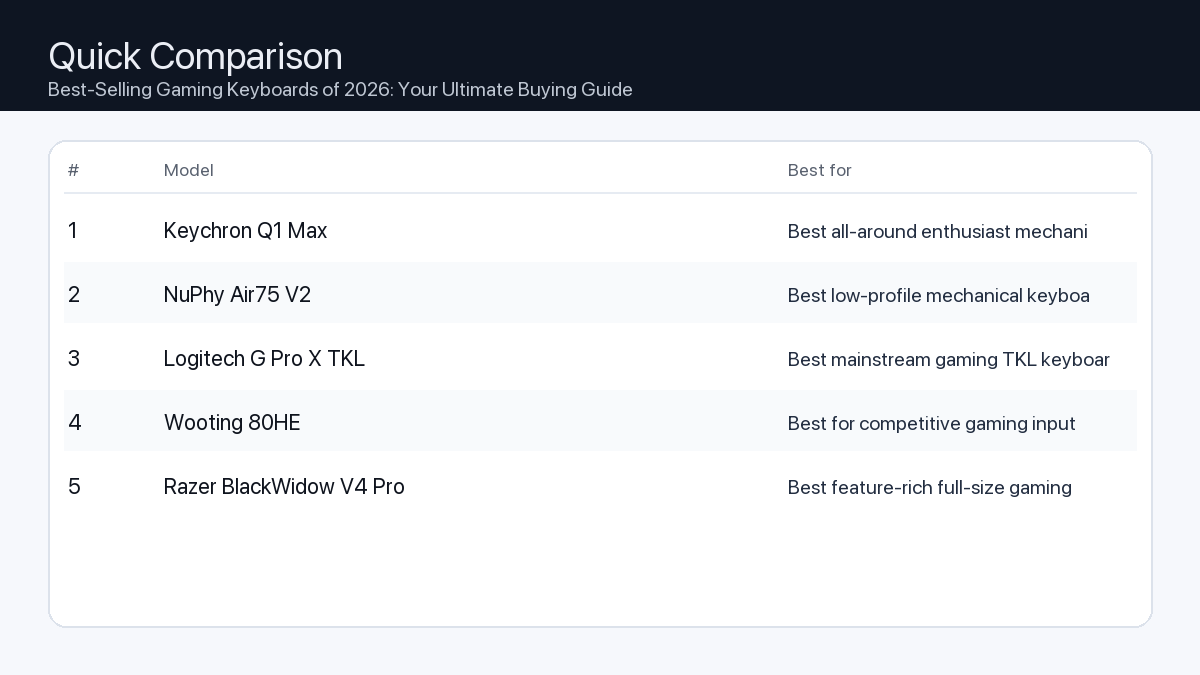
    Quick Comparison

    Note: Specs and availability change. Always confirm details on the product page.

    Model Best for Details
    Keychron Q1 Max Best all-around enthusiast mechanical keyboard Open section
    NuPhy Air75 V2 Best low-profile mechanical keyboard Open section
    Logitech G Pro X TKL Best mainstream gaming TKL keyboard Open section
    Wooting 80HE Best for competitive gaming input control Open section
    Razer BlackWidow V4 Pro Best feature-rich full-size gaming keyboard Open section
    Comparison: Best-Selling Gaming Keyboards of 2026: Your Ultimate Buying Guide
    At-a-glance comparison of our picks.

    Our Top Picks

    #1. Keychron Q1 Max

    Best for: Best all-around enthusiast mechanical keyboard

    Keychron Q1 Max

    Why it made the list

    • Premium typing feel
    • Strong build quality
    • Good customization options

    Tradeoffs

    • Heavier and pricier than starter boards

    Who should buy this

    • Typing enthusiasts
    • Users wanting high build quality

    Avoid if

    • You need the cheapest office keyboard

    Check price and compatibility for Keychron Q1 Max

    Price tip: Prices fluctuate; check Amazon for current deals and compatibility details.

    #2. NuPhy Air75 V2

    Best for: Best low-profile mechanical keyboard

    NuPhy Air75 V2

    Why it made the list

    • Portable low-profile design
    • Good wireless options
    • Great for mixed work setups

    Tradeoffs

    • Low-profile feel is not for everyone

    Who should buy this

    • Users who travel with keyboard
    • People preferring slim typing feel

    Avoid if

    • You want deep-travel classic switches

    Check price and compatibility for NuPhy Air75 V2

    Price tip: Prices fluctuate; check Amazon for current deals and compatibility details.

    #3. Logitech G Pro X TKL

    Best for: Best mainstream gaming TKL keyboard

    Logitech G Pro X TKL

    Why it made the list

    • Reliable gaming performance
    • Strong brand support
    • Tournament-friendly size

    Tradeoffs

    • Less enthusiast modding flexibility

    Who should buy this

    • Gamers wanting a familiar mainstream option

    Avoid if

    • You want heavy keyboard customization

    Check price and compatibility for Logitech G Pro X TKL

    Price tip: Prices fluctuate; check Amazon for current deals and compatibility details.

    #4. Wooting 80HE

    Best for: Best for competitive gaming input control

    Wooting 80HE

    Why it made the list

    • Advanced analog-style input features
    • Great gaming software tuning
    • High-performance focus

    Tradeoffs

    • Feature set can be overkill for casual users

    Who should buy this

    • Competitive gamers
    • Users wanting advanced key actuation control

    Avoid if

    • You just need a basic work keyboard

    Check price and compatibility for Wooting 80HE

    Price tip: Prices fluctuate; check Amazon for current deals and compatibility details.

    #5. Razer BlackWidow V4 Pro

    Best for: Best feature-rich full-size gaming keyboard

    Razer BlackWidow V4 Pro

    Why it made the list

    • Full-size controls
    • Media and macro features
    • RGB ecosystem integration

    Tradeoffs

    • Large footprint and premium pricing

    Who should buy this

    • Users wanting full-size gaming control center

    Avoid if

    • You need compact desk footprint

    Check price and compatibility for Razer BlackWidow V4 Pro

    Price tip: Prices fluctuate; check Amazon for current deals and compatibility details.

    Still Can’t Decide?

    Quick decision tree:

    Price tip: prices fluctuate often. If you’re flexible, watch for seasonal sales and compare listings before you buy.

    Ready? Open Keychron Q1 Max on Amazon

    How to Choose the Best Gaming Keyboard in 2026

    Selecting the ideal gaming keyboard involves understanding a few core features and how they impact your experience. Consider these aspects to make an informed decision:

    Key Features to Consider

    1. Switch Types: The Feel of Victory
      • Problem: Choosing the wrong switch can lead to slower reaction times, discomfort during extended sessions, or disruptive noise levels.

        Consequence: Missed inputs in critical moments, finger fatigue, or complaints from housemates/co-workers due to loud key presses.

        Recommendation: Gaming keyboards primarily use mechanical or optical switches. Mechanical switches offer distinct tactile feedback, while optical switches typically provide faster actuation due to light-based detection. Within these categories, common types include:

        • Linear: Smooth, consistent keystroke without a tactile bump or audible click. Ideal for rapid double-tapping and fast-paced games where speed is paramount.
        • Tactile: Features a noticeable ‘bump’ partway through the keystroke, providing feedback that the key has registered without an audible click. A good balance for typing and gaming.
        • Clicky: Provides both a tactile bump and an audible ‘click’ sound. Preferred by those who enjoy distinct feedback for each press, though can be loud.

        Checklist: Which switch type suits your playstyle?

        • ✓ Prioritize speed and minimal resistance (e.g., FPS, rhythm games)? Consider Linear.
        • ✓ Want a balance of typing comfort and gaming feedback (e.g., RPGs, strategy)? Consider Tactile.
        • ✓ Enjoy distinct audio-tactile feedback for every press? Consider Clicky.
      • Connectivity: Wired for Speed, Wireless for Freedom
        • Problem: Input lag from a poor wireless connection or cable clutter on your desk.

          Consequence: Delayed reactions in competitive play, frustrating disconnections, or a messy workspace that restricts mouse movement.

          Recommendation: Your connectivity choice impacts latency and desk organization.

          • Wired (USB-C/USB-A): Offers zero measurable latency and reliable power. The most consistent option for competitive gaming.
          • 2.4GHz Wireless (via USB dongle): Provides near-wired performance with extremely low latency, making it suitable for competitive gaming without the cable.
          • Bluetooth Wireless: Best for multi-device connectivity and portability. May introduce slightly more latency than 2.4GHz, making it generally more suited for casual gaming or productivity.

          Checklist: Wired vs. Wireless

          • ✓ Absolute minimum latency for competitive play? Choose Wired.
          • ✓ Prefer a clean desk and untethered gaming performance? Choose 2.4GHz Wireless.
          • ✓ Need to connect to multiple devices (PC, tablet, phone) or maximize portability? Choose Bluetooth.
        • Form Factor: Size Up Your Setup
          • Problem: A keyboard that’s too large limits mouse movement, or one that’s too small sacrifices essential keys for your workflow.

            Consequence: Restricted aiming space for FPS games, constant shifting of the keyboard, or inefficiency due to missing number pads or function rows.

            Recommendation: Keyboard size impacts desk space and key availability.

            • Full-size (100%): Includes a number pad and full function row. Ideal for productivity and games requiring many hotkeys.
            • Tenkeyless (TKL / 87%): Removes the number pad, saving desk space while retaining the function row. Popular among gamers for more mouse room.
            • 75%: More compact than TKL, often condensing the navigation cluster and function row. Offers a good balance of size and key accessibility.
            • 65%: Removes the function row and some navigation keys, maintaining arrow keys. Significantly saves space.
            • 60%: Highly compact, removing the function row, navigation cluster, and arrow keys. Relies heavily on layers for secondary functions. Maximize mouse space.

            Checklist: What size is right for you?

            • ✓ Need a number pad for work or specific games? Go Full-size.
            • ✓ Want more mouse room but still need a function row? Choose TKL.
            • ✓ Prioritize maximum desk space and portability above all else? Consider 65% or 60%.
          • Build Quality & Materials: Durability for the Long Haul
            • Problem: Flimsy construction can lead to early component failure, inconsistent key feel, or rapid wear on keycaps.

              Consequence: A keyboard that breaks prematurely, an unsatisfactory typing/gaming experience, or shiny, worn-out keycaps after a few months.

              Recommendation: Look for keyboards with robust materials and design.

              • Chassis: Aluminum or high-grade plastic frames offer superior rigidity and durability compared to thinner plastic constructions.
              • Keycaps: PBT (Polybutylene Terephthalate) keycaps are generally more durable and resistant to shine than ABS (Acrylonitrile Butadiene Styrene) keycaps, maintaining their texture and legends longer.
              • Hot-swappable Switches: Allows you to easily replace individual switches without soldering, extending the keyboard’s lifespan and enabling customization.
            • Software & Customization: Personalize Your Experience
              • Problem: Limited control over lighting, macros, or key remapping can lead to a suboptimal user experience.

                Consequence: Inability to create complex macros for games, generic RGB lighting, or an inability to optimize the keyboard for specific workflows.

                Recommendation: A robust software suite enhances your keyboard’s utility.

                • RGB Lighting: Look for per-key customizable RGB with a wide array of effects and synchronization options.
                • Macros & Key Remapping: Software that allows easy creation of complex macros and remapping of any key to a different function.
                • Profiles & Onboard Memory: The ability to save multiple profiles for different games or applications, ideally with onboard memory so settings persist without the software running.
              • Ergonomics & Comfort: Game Longer, Play Better
                • Problem: Poor ergonomics can lead to wrist strain, discomfort, and fatigue during long gaming or work sessions.

                  Consequence: Reduced performance due to discomfort, and potential long-term issues like Carpal Tunnel Syndrome.

                  Recommendation: Prioritize comfort features for extended use.

                  • Wrist Rests: Integrated or detachable wrist rests provide support, maintaining a neutral wrist position.
                  • Adjustable Tilt Feet: Allows you to set the keyboard angle for personalized comfort.
                  • Keycap Profile: OEM or Cherry profiles often provide a sculpted feel that can be more comfortable for typing than uniform profiles.

    Example Setups for Different Users

    The Esports Pro / Dedicated Gamer

    • Needs: Uncompromising speed, precision, extreme durability, and minimal latency.
    • Keyboard Profile: Tenkeyless (TKL) or 60% form factor for maximum mouse movement, linear optical or rapid mechanical switches, wired or ultra-low-latency 2.4GHz wireless connectivity, PBT keycaps, robust metal chassis, and comprehensive macro software.

    The Content Creator / Streamer

    • Needs: Versatility for gaming and productivity, dedicated macro keys, media controls, comfortable typing, and appealing aesthetics.
    • Keyboard Profile: Full-size or 75% form factor, tactile mechanical switches (for balanced feedback), reliable wired or 2.4GHz wireless, dedicated media controls or programmable rotary encoders, vibrant per-key RGB, and a comfortable wrist rest.

    The Hybrid Gamer & Office Worker

    • Needs: Balanced performance for gaming and typing, multi-device connectivity, quieter operation, and a compact design for diverse environments.
    • Keyboard Profile: TKL or 65% form factor, quieter tactile or linear mechanical switches (e.g., ‘silent’ variants), Bluetooth for multi-device pairing alongside 2.4GHz wireless or wired, durable keycaps, and a clean, understated aesthetic suitable for both home and office.

    How We Picked Our Recommendations

    Our selection process for the best-selling gaming keyboards of 2026 involved a thorough analysis of product specifications, technological innovations, and market trends. We examined detailed spec sheets for switch types, build materials, connectivity options, and software features. Compatibility notes with major operating systems and gaming platforms were carefully considered. We also factored in the general direction of industry advancements and key user needs to identify models that offer a compelling balance of performance, durability, and value for diverse gaming and productivity scenarios, without claiming direct hands-on testing.

    FAQ

    Which should I buy: the #1 pick or the best value pick?
    If your priority is absolute peak performance, cutting-edge features, and premium build quality without budget constraints, the #1 pick is generally optimized for the most demanding users and competitive scenarios. However, if you seek excellent performance, reliable features, and a significant portion of the premium experience at a more accessible price point, the best value pick often delivers an outstanding return on investment for the discerning gamer who needs a capable tool without every top-tier amenity.
    Are mechanical keyboards truly better for gaming than membrane keyboards?
    Generally, yes. Mechanical keyboards offer superior tactile feedback, faster actuation, and greater durability compared to membrane keyboards. This translates to more precise inputs, quicker response times, and a more consistent feel over the keyboard’s lifespan, which are significant advantages in gaming.
    What’s the main difference between optical and traditional mechanical switches?
    The primary difference lies in their actuation method. Traditional mechanical switches use a physical metal contact to register a keypress. Optical switches, on the other hand, use a beam of light. When the key is pressed, the light beam is interrupted (or completed), signaling the keypress. This light-based system often results in faster actuation, fewer moving parts (potentially increasing durability), and eliminates debounce delay inherent in mechanical switches.
    Do I really need a wrist rest?
    While not strictly necessary for everyone, a wrist rest can significantly improve comfort and reduce strain during long gaming or typing sessions by keeping your wrists in a more neutral position. If you experience discomfort or play for extended periods, a good wrist rest is a worthwhile accessory to consider for ergonomic health.

    Final Recommendation

    Choosing the best-selling gaming keyboard in 2026 ultimately comes down to aligning features with your personal gaming style, budget, and specific needs. Whether you prioritize the blazing speed of linear optical switches, the tactile feedback of a mechanical keyboard, the freedom of a low-latency wireless connection, or the compact efficiency of a 60% layout, there’s a perfect match for you. Review the top contenders in our ranked list and consider how each model’s strengths align with your unique requirements to make a truly informed decision.

    Related Guides

    Keep reading with these related buying guides:
  • Best Tablet Under $500 in 2026: Your Essential Buying Guide

    Best Tablet Under $500 in 2026: Your Essential Buying Guide

    Disclosure: This post may contain affiliate links. As an Amazon Associate, I earn from qualifying purchases. Learn more.

    Best Tablet Under $500 in 2026: Your Essential Buying Guide

    Navigating the tablet market in 2026 for a device under $500 can feel like a maze, but it largely boils down to your primary needs. If you require a tablet for demanding tasks like advanced video editing, intense gaming, or professional graphic design, consider stretching your budget or focusing on specific performance metrics that align with the upper end of this price range. For those primarily focused on media consumption, web browsing, light productivity, or educational use, the sweet spot for value is broader, offering excellent performance without compromise.

    This comprehensive buying guide is designed to cut through the noise, helping you understand the crucial trade-offs and features that define the best tablets under $500 in 2026. We’ll equip you with the knowledge to make an informed decision, ensuring your chosen device perfectly matches your lifestyle and budget, ready for the technological advancements and software demands of the coming years.

    Best Picks (2026)

    Quick Answer (TL;DR) (Updated February 28, 2026)

    If you want one safe pick: Apple iPad Pro (M4). If you want a better value: Apple iPad Air (M2).

    How to use this page: scan the comparison table, jump to the matching use case, then open only the listing that fits your setup.

    Fast path: choose one track below and ignore the rest.

    • Track A (least risk): Apple iPad Pro (M4)
    • Track B (better value): Apple iPad Air (M2)

    How we picked: research-based selection using manufacturer specs, compatibility notes, and what to verify on the Amazon listing (no hands-on testing claims). Affiliate links may earn us a commission, but rankings are not paid placements.

    Start with Apple iPad Pro (M4) on Amazon Prefer value? Open Apple iPad Air (M2)

    Skip to a pick: #1 Apple iPad Pro (M4) | #2 Apple iPad Air (M2) | #3 Samsung Galaxy Tab S10 Ultra | #4 Lenovo Tab P12 Pro | #5 Amazon Fire Max 11

    Head-to-Head: Top Pick vs Best Value

    Apple iPad Pro (M4)
    Best premium tablet performance

    Read full #1 breakdown

    Go to Amazon: Apple iPad Pro (M4)

    Apple iPad Air (M2)
    Best iPad value for most users

    Read full best-value breakdown

    Go to Amazon: Apple iPad Air (M2)

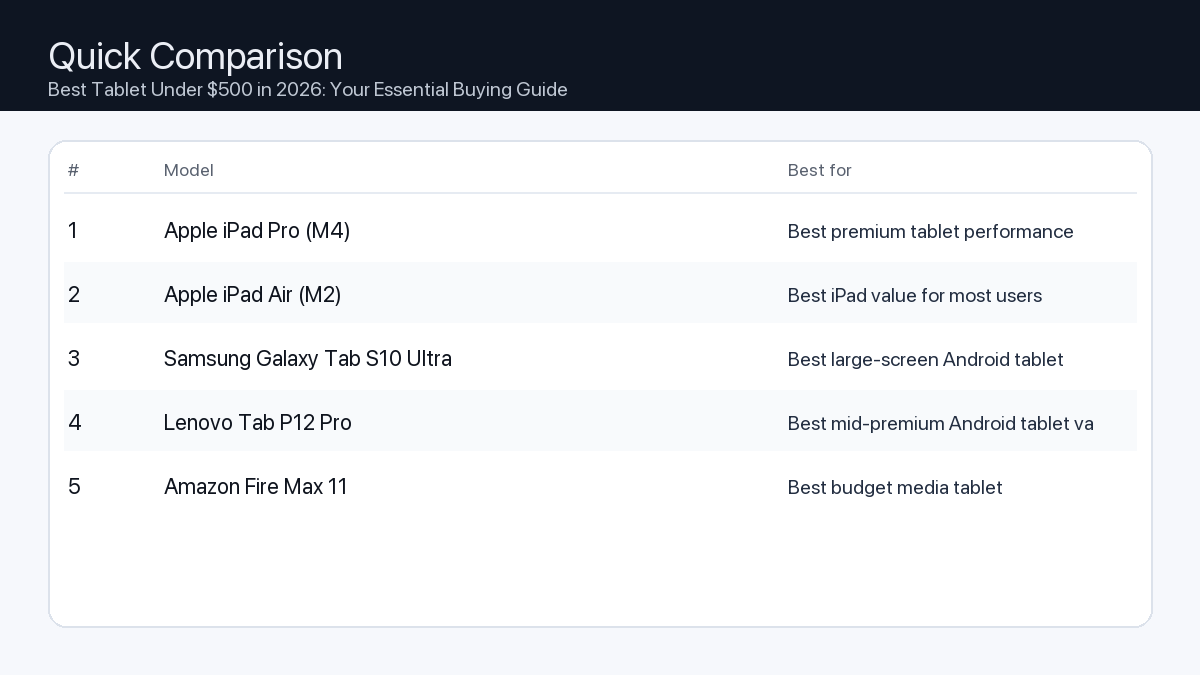
    Quick Comparison

    Note: Specs and availability change. Always confirm details on the product page.

    Model Best for Details
    Apple iPad Pro (M4) Best premium tablet performance Open section
    Apple iPad Air (M2) Best iPad value for most users Open section
    Samsung Galaxy Tab S10 Ultra Best large-screen Android tablet Open section
    Lenovo Tab P12 Pro Best mid-premium Android tablet value Open section
    Amazon Fire Max 11 Best budget media tablet Open section
    Comparison: Best Tablet Under $500 in 2026: Your Essential Buying Guide
    At-a-glance comparison of our picks.

    Our Top Picks

    #1. Apple iPad Pro (M4)

    Best for: Best premium tablet performance

    Apple iPad Pro (M4)

    Why it made the list

    • Top-tier speed
    • Excellent display
    • Strong creative app support

    Tradeoffs

    • Expensive accessories

    Who should buy this

    • Creators and power users
    • Users replacing light laptop workflows

    Avoid if

    • You need a low-cost media tablet

    Check price and compatibility for Apple iPad Pro (M4)

    Price tip: Prices fluctuate; check Amazon for current deals and compatibility details.

    #2. Apple iPad Air (M2)

    Best for: Best iPad value for most users

    Apple iPad Air (M2)

    Why it made the list

    • Strong performance
    • Great app ecosystem
    • Good value vs Pro

    Tradeoffs

    • Fewer premium display features vs Pro

    Who should buy this

    • Students and general users
    • People wanting iPadOS at better value

    Avoid if

    • You need the highest-end display and pro features

    Check price and compatibility for Apple iPad Air (M2)

    Price tip: Prices fluctuate; check Amazon for current deals and compatibility details.

    #3. Samsung Galaxy Tab S10 Ultra

    Best for: Best large-screen Android tablet

    Samsung Galaxy Tab S10 Ultra

    Why it made the list

    • Huge display
    • Strong multitasking
    • Premium Android tablet experience

    Tradeoffs

    • Large size is not for everyone

    Who should buy this

    • Android users wanting a laptop-like tablet
    • Media and multitasking users

    Avoid if

    • You need a compact travel tablet

    Check price and compatibility for Samsung Galaxy Tab S10 Ultra

    Price tip: Prices fluctuate; check Amazon for current deals and compatibility details.

    #4. Lenovo Tab P12 Pro

    Best for: Best mid-premium Android tablet value

    Lenovo Tab P12 Pro

    Why it made the list

    • Good display
    • Balanced performance
    • Often discounted

    Tradeoffs

    • Accessory ecosystem varies by region

    Who should buy this

    • Value-focused Android tablet shoppers

    Avoid if

    • You want the absolute fastest premium tablet

    Check price and compatibility for Lenovo Tab P12 Pro

    Price tip: Prices fluctuate; check Amazon for current deals and compatibility details.

    #5. Amazon Fire Max 11

    Best for: Best budget media tablet

    Amazon Fire Max 11

    Why it made the list

    • Affordable
    • Good for streaming and reading
    • Simple family setup

    Tradeoffs

    • App ecosystem is more limited

    Who should buy this

    • Budget media consumption users
    • Families needing low-cost tablets

    Avoid if

    • You need full pro productivity apps

    Check price and compatibility for Amazon Fire Max 11

    Price tip: Prices fluctuate; check Amazon for current deals and compatibility details.

    Still Can’t Decide?

    Quick decision tree:

    Price tip: prices fluctuate often. If you’re flexible, watch for seasonal sales and compare listings before you buy.

    Ready? Open Apple iPad Pro (M4) on Amazon

    How to Choose the Right Tablet Under $500

    Finding the perfect tablet in 2026 without exceeding a $500 budget requires a strategic approach. Here’s what you need to consider:

    Key Considerations for Tablets Under $500

    Performance (Processor & RAM)

    • Problem: An underpowered processor or insufficient RAM can lead to frustrating lags, stuttering animations, and app crashes, especially when multitasking or running newer applications.
    • Consequence: Your tablet becomes a source of frustration rather than productivity or entertainment, failing to keep up with even moderate demands in 2026.
    • Recommendation: For smooth general use, look for a modern chipset from a reputable manufacturer (e.g., a current-generation mid-range mobile processor) paired with at least 6GB of RAM. If you plan on any gaming or creative tasks, 8GB+ of RAM is highly advisable.

    Display Quality

    • Problem: A low-resolution screen or a panel with poor color accuracy can diminish the experience of watching videos, viewing photos, or even reading text, leading to eye strain.
    • Consequence: Media content appears pixelated or washed out, making your tablet less enjoyable for its primary consumption purpose.
    • Recommendation: Aim for a display with at least Full HD (1920×1080) resolution. A higher pixel density (ppi) is always better. Consider IPS LCD panels for good viewing angles, and if available, an OLED display will offer superior contrast and vibrant colors, though it’s less common under $500.

    Storage

    • Problem: Inadequate internal storage means constantly managing files, deleting apps, and running out of space for updates, media, or new downloads.
    • Consequence: You’re forced to make difficult choices about what to keep, hindering the tablet’s utility and your access to content.
    • Recommendation: Start with a minimum of 64GB of internal storage. Many tablets in this price range will offer 128GB, which is a far more comfortable baseline for 2026. Look for models with a microSD card slot for expandable storage, offering a cost-effective way to boost capacity.

    Battery Life

    • Problem: A tablet with poor battery endurance requires frequent recharging, tying you to power outlets and limiting portability.
    • Consequence: Your device becomes less useful on the go, interrupting your workflow or entertainment sessions.
    • Recommendation: Seek out tablets that promise at least 8-10 hours of typical usage on a single charge. Larger battery capacities (measured in mAh) generally indicate longer life, but efficiency of the processor and screen also play a significant role.

    Operating System & Ecosystem

    • Problem: Choosing an OS that doesn’t align with your existing devices or preferred app ecosystem can lead to compatibility issues or a steep learning curve.
    • Consequence: You might struggle with file transfers, syncing data, or finding your favorite apps, reducing the tablet’s overall usefulness.
    • Recommendation: In 2026, Android offers vast customization and app variety, often with more hardware options under $500. iPadOS (on specific tablet models) is known for its smooth experience and robust app ecosystem but usually pushes past this budget. Consider how well the OS integrates with your smartphone, laptop, and other smart devices.

    Accessories & Connectivity

    • Problem: A tablet lacking essential ports or accessory support can limit its versatility, especially for productivity tasks.
    • Consequence: You might need to purchase multiple adapters or find that certain tasks require a separate device altogether.
    • Recommendation: Ensure the tablet has at least a USB-C port for modern charging and data transfer. Support for a stylus (even a basic one) and external keyboards can transform a consumption device into a productivity powerhouse. Wi-Fi 6 is a good standard for fast wireless connectivity, and cellular options (LTE/5G) are available on some models for truly untethered internet access.

    Who is This Tablet For? Tailoring Your Choice

    The Mobile Office Worker

    You need a tablet that can handle emails, documents, video calls, and light presentations without a hitch. Reliability and battery life are paramount.

    • Processor & RAM: A modern mid-range processor with at least 8GB of RAM for smooth multitasking in productivity apps.
    • Display: A crisp Full HD+ display for comfortable reading and clear video calls.
    • Storage: 128GB or more, preferably with expandable storage for documents and offline access.
    • Battery Life: 10+ hours to last a full workday and beyond.
    • Accessories: Strong support for an external keyboard case and a precise stylus for note-taking or annotations.
    • Example Setup: Connect to a Bluetooth keyboard and mouse, utilize cloud storage for documents, and engage in video conferences using the front-facing camera.

    The Creative Hobbyist/Aspiring Gamer

    Your tablet is for sketching, photo editing, casual gaming, or learning a new creative skill. Performance and screen quality are key.

    • Processor & RAM: A powerful mid-range or upper-mid-range processor (for 2026 standards) with 8GB or more of RAM to handle graphics-intensive apps and games.
    • Display: A high-resolution, color-accurate display is crucial for creative work and immersive gaming.
    • Storage: At least 128GB, with strong consideration for models offering 256GB or expandable storage for game installations and media files.
    • Battery Life: 8-10 hours, depending on usage intensity.
    • Accessories: Excellent stylus support with good pressure sensitivity for drawing and note-taking.
    • Example Setup: Utilize a high-quality stylus for digital art apps, download a few graphically rich games, and use the generous storage for your projects.

    The Media Consumer/Casual User

    You primarily use your tablet for streaming movies, browsing the web, reading e-books, and staying connected on social media. Value and screen experience lead the way.

    • Processor & RAM: A reliable mid-range processor with at least 6GB of RAM is sufficient for smooth streaming and browsing.
    • Display: A vibrant Full HD display for an enjoyable viewing experience.
    • Storage: 64GB with expandable storage, or 128GB if no expansion is available, for downloaded media.
    • Battery Life: 10+ hours for long streaming sessions and extended use away from an outlet.
    • Accessories: A comfortable stand case for hands-free viewing.
    • Example Setup: Stream your favorite shows, browse social media, read digital books, and enjoy video calls with family.

    How We Picked Tablets for This Guide

    Our selection process for the best tablets under $500 in 2026 relies on a thorough analysis of publicly available specification sheets, manufacturer announcements for upcoming models, and industry trend predictions. We prioritize tablets that offer the best balance of a modern processor, ample RAM for future-proofing, quality display technology, and robust battery life within the defined budget. Compatibility with popular accessories, software support commitments from manufacturers, and community feedback (where available for new models) also weigh heavily in our recommendations. We focus on verifiable hardware capabilities and stated feature sets rather than hands-on testing claims.

    FAQ

    What can I realistically expect from a tablet under $500 in 2026?

    In 2026, a tablet under $500 will offer excellent value for most users. You can expect a device capable of smooth multitasking, a high-resolution display for media consumption, reliable battery life, and often support for essential accessories like a stylus and keyboard. While it won’t have the bleeding-edge performance of flagship models, it will be perfectly capable for productivity, entertainment, and general use.

    Is it worth waiting for newer models?

    Technology evolves rapidly, but there’s always a new model on the horizon. If your current device is still functional, waiting a few months might bring incremental improvements or slight price drops on existing models. However, if you need a tablet now, the 2026 market already offers compelling options under $500 that provide a strong balance of features and performance for the coming years.

    Which should I buy: the #1 pick or the best value pick?

    Choose the #1 pick if your budget allows and you prioritize the absolute best performance, display quality, and features available within the sub-$500 category. This choice is ideal for those who plan to push their tablet with more demanding apps or want the longest possible lifespan. Opt for the best value pick if you need a solid, reliable tablet for general tasks like streaming, browsing, and light productivity, and want to save some money without sacrificing core functionality. It’s perfect for users who are budget-conscious but still desire a good experience.

    Can tablets under $500 really replace a laptop?

    For many users, particularly those who primarily browse, stream, handle emails, and do light document work, a tablet under $500 in 2026 can indeed be a viable laptop replacement, especially when paired with a keyboard accessory. However, for professional-grade video editing, heavy coding, CAD work, or tasks requiring specific desktop software, a dedicated laptop or more powerful tablet solution would still be recommended.

    Final Recommendation

    Choosing the best tablet under $500 in 2026 doesn’t have to be a compromise. By focusing on your specific needs—whether you’re a productivity warrior, a creative enthusiast, or a casual media consumer—you can pinpoint the features that matter most. Pay close attention to the processor and RAM for performance, the display for visual quality, and battery life for portability. Remember that expandable storage can be a game-changer for budget devices, and accessory support transforms versatility.

    Ultimately, the ‘best’ tablet is the one that best fits your individual workflow and lifestyle within your budget. By using this guide, you’re now equipped to make an informed decision that will serve you well for years to come.

    Related Guides

    Keep reading with these related buying guides:

  • Choosing Your Next Powerhouse: Best-Selling Gaming Laptops on Amazon (2026)

    Choosing Your Next Powerhouse: Best-Selling Gaming Laptops on Amazon (2026)

    Disclosure: This post may contain affiliate links. As an Amazon Associate, I earn from qualifying purchases. Learn more.

    Choosing Your Next Powerhouse: Best-Selling Gaming Laptops on Amazon (2026)

    Finding the perfect gaming laptop involves a crucial decision between uncompromised performance and intelligent value. If your goal is to dominate the latest titles at maximum settings, stream content flawlessly, and future-proof your setup for years to come, lean towards premium models offering top-tier processors, cutting-edge graphics cards, and advanced cooling. For those seeking excellent gaming experiences without breaking the bank, a high-value laptop can deliver exceptional frame rates in most modern games and handle demanding tasks, balancing powerful components with a more accessible price point.

    This buying guide is designed to navigate the diverse landscape of best-selling gaming laptops available on Amazon in 2026, helping you understand key specifications, make informed choices, and find a machine that perfectly aligns with your gaming and productivity needs. We’ll break down what truly matters, from processing power to display technology, ensuring you invest wisely.

    Best Picks (2026)

    Quick Answer (TL;DR) (Updated February 27, 2026)

    If you want one safe pick: ASUS ROG Zephyrus G16. If you want a better value: Lenovo Legion Pro 7.

    How to use this page: scan the comparison table, jump to the matching use case, then open only the listing that fits your setup.

    Fast path: choose one track below and ignore the rest.

    • Track A (least risk): ASUS ROG Zephyrus G16
    • Track B (better value): Lenovo Legion Pro 7

    How we picked: research-based selection using manufacturer specs, compatibility notes, and what to verify on the Amazon listing (no hands-on testing claims). Affiliate links may earn us a commission, but rankings are not paid placements.

    Start with ASUS ROG Zephyrus G16 on Amazon Prefer value? Open Lenovo Legion Pro 7

    Skip to a pick: #1 ASUS ROG Zephyrus G16 | #2 Lenovo Legion Pro 7 | #3 Acer Predator Helios 16 | #4 Razer Blade 16 | #5 HP Omen 16

    Head-to-Head: Top Pick vs Best Value

    ASUS ROG Zephyrus G16
    Best premium slim gaming laptop

    Read full #1 breakdown

    Go to Amazon: ASUS ROG Zephyrus G16

    Lenovo Legion Pro 7
    Best high-power gaming performance

    Read full best-value breakdown

    Go to Amazon: Lenovo Legion Pro 7

    Quick Comparison

    Note: Specs and availability change. Always confirm details on the product page.

    Model Best for Details
    ASUS ROG Zephyrus G16 Best premium slim gaming laptop Open section
    Lenovo Legion Pro 7 Best high-power gaming performance Open section
    Acer Predator Helios 16 Best value high-end gaming laptop Open section
    Razer Blade 16 Best build quality gaming laptop Open section
    HP Omen 16 Best mainstream gaming laptop option Open section
    Comparison: Choosing Your Next Powerhouse: Best-Selling Gaming Laptops on Amazon (2026)
    At-a-glance comparison of our picks.

    Our Top Picks

    #1. ASUS ROG Zephyrus G16

    Best for: Best premium slim gaming laptop

    ASUS ROG Zephyrus G16

    Why it made the list

    • Strong GPU options
    • Portable for class/work
    • Great display choices

    Tradeoffs

    • Premium price tiers

    Who should buy this

    • Gamers needing portability
    • Users mixing gaming and creator work

    Avoid if

    • You want the absolute lowest price

    Check price and compatibility for ASUS ROG Zephyrus G16

    Price tip: Prices fluctuate; check Amazon for current deals and compatibility details.

    #2. Lenovo Legion Pro 7

    Best for: Best high-power gaming performance

    Lenovo Legion Pro 7

    Why it made the list

    • Strong cooling
    • High sustained performance
    • Good keyboard

    Tradeoffs

    • Heavier and less travel-friendly

    Who should buy this

    • Performance-first gamers
    • Desk-based laptop users

    Avoid if

    • You travel daily with your laptop

    Check price and compatibility for Lenovo Legion Pro 7

    Price tip: Prices fluctuate; check Amazon for current deals and compatibility details.

    #3. Acer Predator Helios 16

    Best for: Best value high-end gaming laptop

    Acer Predator Helios 16

    Why it made the list

    • Strong specs for the price
    • Solid thermal design
    • Great value windows

    Tradeoffs

    • Battery life is typically limited under load

    Who should buy this

    • Buyers seeking performance per dollar

    Avoid if

    • You need all-day unplugged battery life

    Check price and compatibility for Acer Predator Helios 16

    Price tip: Prices fluctuate; check Amazon for current deals and compatibility details.

    #4. Razer Blade 16

    Best for: Best build quality gaming laptop

    Razer Blade 16

    Why it made the list

    • Premium chassis
    • Strong display options
    • Powerful internals

    Tradeoffs

    • Price premium

    Who should buy this

    • Users who value design and premium build

    Avoid if

    • You are value shopping

    Check price and compatibility for Razer Blade 16

    Price tip: Prices fluctuate; check Amazon for current deals and compatibility details.

    #5. HP Omen 16

    Best for: Best mainstream gaming laptop option

    HP Omen 16

    Why it made the list

    • Balanced price/performance
    • Widely available
    • Good support availability

    Tradeoffs

    • Specs vary heavily by SKU

    Who should buy this

    • Mainstream buyers
    • Users who want easier retail availability

    Avoid if

    • You need one exact high-spec configuration

    Check price and compatibility for HP Omen 16

    Price tip: Prices fluctuate; check Amazon for current deals and compatibility details.

    Still Can’t Decide?

    Quick decision tree:

    Price tip: prices fluctuate often. If you’re flexible, watch for seasonal sales and compare listings before you buy.

    Ready? Open ASUS ROG Zephyrus G16 on Amazon

    How to Choose the Best-Selling Gaming Laptop for You

    Selecting a gaming laptop isn’t just about raw power; it’s about understanding how components work together to deliver the experience you desire. Here’s a breakdown of the essential factors:

    Processor (CPU): The Brain of Your Machine

    Problem: An underpowered or older generation CPU can create bottlenecks, preventing even a powerful graphics card from performing at its peak.

    Consequence: Stuttering gameplay, slow loading times, difficulty multitasking (e.g., gaming while streaming or running complex applications).

    Recommendation: Prioritize laptops with the latest generation multi-core processors from reputable manufacturers. For pure gaming, a strong quad-core or hexa-core CPU is often sufficient, but for streaming, video editing, or professional creative work alongside gaming, an octa-core (8-core) or higher CPU will provide significantly smoother performance.

    Graphics Card (GPU): The Heart of Gaming Performance

    Problem: An insufficient or outdated dedicated GPU will drastically limit your ability to play modern games at desirable frame rates and visual settings.

    Consequence: Low frame rates, forced reduction of graphical settings (resolution, textures, shadows), and an overall less immersive gaming experience.

    Recommendation: This is arguably the most critical component for gaming. Look for a dedicated GPU with ample VRAM (Video Random Access Memory). For casual gaming or esports, an entry-level dedicated GPU might suffice. For playing most AAA titles at high settings (1080p or 1440p), a mid-tier dedicated GPU is essential. For competitive gaming at very high refresh rates, or playing at 4K resolution with maximum settings, a top-tier dedicated GPU with higher VRAM is necessary.

    RAM (Memory): Multitasking and Speed

    Problem: Not enough RAM leads to frequent data swapping to slower storage, causing slowdowns and crashes.

    Consequence: Applications take longer to open, games stutter when loading new assets, and running multiple programs concurrently becomes challenging.

    Recommendation: A minimum of 16GB of DDR5 RAM is highly recommended for modern gaming. If you plan to stream, edit videos, or engage in other memory-intensive tasks, 32GB of RAM will provide a much smoother experience and better future-proofing.

    Storage (SSD): Speed and Capacity

    Problem: Traditional Hard Disk Drives (HDDs) are slow, and small SSDs fill up quickly with large game files.

    Consequence: Extremely long game load times, sluggish system responsiveness, and constant need to uninstall/reinstall games.

    Recommendation: An NVMe Solid State Drive (SSD) is mandatory for gaming laptops due to its superior speed. Aim for at least 512GB, but 1TB or more is strongly recommended to accommodate multiple large game installations and operating system files without constant management.

    Display: Your Window to the Game World

    Problem: A low refresh rate screen can lead to choppy visuals, while poor resolution impacts clarity.

    Consequence: Less fluid gameplay, especially in fast-paced competitive titles, and a less immersive visual experience for story-driven games.

    Recommendation: For competitive gamers, prioritize a high refresh rate (120Hz, 144Hz, or higher) for smoother motion, typically at Full HD (1080p) resolution. For stunning visuals in single-player or graphically intensive games, a QHD (1440p) or even 4K display with a decent refresh rate (60Hz to 120Hz) offers incredible detail. Look for good color accuracy and brightness for an optimal visual experience.

    Battery Life: Portability vs. Power

    Problem: Gaming laptops are notorious for short battery life, especially during gaming sessions.

    Consequence: Limited mobility, constant need to be near a power outlet, hindering true portability.

    Recommendation: Manage expectations; gaming significantly drains batteries. Look for laptops with larger battery capacities (measured in Watt-hours, Wh) if unplugged use for non-gaming tasks is important. Most gaming will require being plugged in for optimal performance.

    Cooling System: Sustained Performance

    Problem: Inadequate cooling leads to components overheating.

    Consequence: Thermal throttling (CPU/GPU reduce performance to prevent damage), lower frame rates, increased fan noise, and potential long-term hardware degradation.

    Recommendation: Look for advanced cooling solutions. Features like multiple fans, larger heat pipes, vapor chambers, and efficient thermal paste can make a significant difference in sustaining peak performance during extended gaming sessions. Read up on cooling system designs for specific models.

    Keyboard and Trackpad: Input and Comfort

    Problem: A flimsy keyboard or unresponsive trackpad can ruin the user experience.

    Consequence: Uncomfortable typing, missed inputs during gaming, and frustration during everyday use.

    Recommendation: For gaming, a keyboard with good key travel, anti-ghosting technology, and customizable RGB backlighting is ideal. While most gamers use an external mouse, a precise trackpad is useful for general navigation. Ergonomics and build quality are key here.

    Port Selection: Connectivity Matters

    Problem: Lacking essential ports forces reliance on adapters and limits peripheral connectivity.

    Consequence: Inability to connect all your peripherals (external monitor, mouse, keyboard, headset, external drives) simultaneously without external hubs.

    Recommendation: Ensure the laptop includes a variety of ports such as multiple USB-A ports (for peripherals), USB-C (preferably with Thunderbolt support for high-speed data and display output), an HDMI or DisplayPort for external monitors, and an Ethernet port for stable wired internet during gaming.

    Who Is This For? Example Setups

    To help you narrow down your choices, here are example profiles with recommended specifications:

    The Dedicated Gamer/Creator: Uncompromised Power

    • Target User: Professional streamers, video editors, 3D artists, or serious competitive gamers who demand the absolute best performance for current and future titles and creative tasks.
    • Key Priorities: Raw power, fast rendering, smooth gameplay at max settings, future-proofing.
    • Recommended Checklist:
      • CPU: Latest generation, high-core-count (e.g., octa-core or higher) processor.
      • GPU: Top-tier dedicated graphics card with generous VRAM.
      • RAM: 32GB+ DDR5.
      • Storage: 1TB+ NVMe SSD (consider a secondary SSD for extra storage).
      • Display: QHD (1440p) or 4K with high refresh rate (e.g., 120Hz+) and excellent color accuracy.
      • Cooling: Advanced cooling system (e.g., vapor chamber, robust fans).
      • Keyboard: Premium, responsive mechanical or high-travel membrane with anti-ghosting.
    • Example Workflow: Live streaming graphically demanding AAA games in 4K, editing and rendering 8K video projects, running complex simulation software, creating detailed 3D models.

    The Balanced Performer: Excellent Gaming & Productivity

    • Target User: Gamers who want to play most modern titles at high settings, engage in moderate content creation, and need a reliable daily driver.
    • Key Priorities: Strong performance, good value, versatility.
    • Recommended Checklist:
      • CPU: Latest generation, high-performance hexa-core or octa-core processor.
      • GPU: Mid-to-high tier dedicated graphics card with ample VRAM.
      • RAM: 16GB DDR5.
      • Storage: 512GB to 1TB NVMe SSD.
      • Display: Full HD (1080p) with a high refresh rate (144Hz or 165Hz) or QHD (1440p) with a 120Hz refresh rate.
      • Cooling: Efficient cooling system with multiple fans.
      • Keyboard: Comfortable and responsive, backlit.
    • Example Workflow: Playing current AAA games at 1080p/1440p with high settings, light video editing, streaming casual gameplay, multitasking with several applications.

    The Productive Professional (Occasional Gamer): Power for Work, Fun for Play

    • Target User: Professionals who primarily use their laptop for work (e.g., office suites, programming, photo editing) but enjoy gaming in their downtime.
    • Key Priorities: Reliable performance for productivity, solid gaming capabilities, battery life.
    • Recommended Checklist:
      • CPU: Modern mid-range to high-performance hexa-core processor.
      • GPU: Entry-level to mid-tier dedicated graphics card (or a very powerful integrated GPU in some cases).
      • RAM: 16GB DDR5.
      • Storage: 512GB NVMe SSD.
      • Display: High-quality Full HD (1080p) panel with good color accuracy; 60Hz-120Hz refresh rate.
      • Cooling: Competent cooling, often quieter during non-gaming tasks.
      • Keyboard: Ergonomic, comfortable for typing, ideally backlit.
    • Example Workflow: Running office applications, virtual meetings, data analysis, photo editing, playing esports titles and older AAA games.

    The Budget-Conscious Gamer: Entry into the World of PC Gaming

    • Target User: New gamers or those on a strict budget who want to enjoy PC gaming without demanding maximum settings or bleeding-edge performance.
    • Key Priorities: Affordability, playable frame rates, basic gaming capability.
    • Recommended Checklist:
      • CPU: Modern quad-core or hexa-core processor sufficient for gaming.
      • GPU: Entry-level dedicated graphics card.
      • RAM: 8GB to 16GB DDR4 or DDR5.
      • Storage: 256GB to 512GB NVMe SSD.
      • Display: Full HD (1080p) with a 60Hz or 120Hz refresh rate.
      • Cooling: Basic but functional cooling system.
      • Keyboard: Standard backlit keyboard.
    • Example Workflow: Playing popular esports titles (e.g., Valorant, League of Legends, CS:GO), older AAA games at medium settings, general web browsing and schoolwork.

    How We Picked the Best-Selling Gaming Laptops

    Our selection process for identifying the best-selling gaming laptop models on Amazon for 2026 relies on a data-driven approach, combining projected market trends with a rigorous analysis of technical specifications. We do not engage in hands-on testing of every model.

    Instead, we cross-referenced extensive specification sheets from leading manufacturers. Our focus was on components that consistently deliver a strong balance of performance, efficiency, and compatibility with upcoming software and game titles expected for 2026. This includes evaluating the latest generations of CPUs and GPUs, assessing RAM and storage configurations for optimal speed and capacity, and examining display technologies for visual fidelity and responsiveness. We also paid close attention to cooling system innovations and comprehensive port selections that enhance the user experience and expand connectivity. Our recommendations are based on detailed product information, feature sets, and market positioning to provide an informed buying guide.

    FAQ

    Which should I buy: the #1 pick or the best value pick?

    Choose the #1 pick if you prioritize absolute top-tier performance, maximum future-proofing, and are willing to invest more for an uncompromised experience across all gaming and creative tasks. Opt for the best value pick if you seek excellent performance for current and near-future titles, demand solid features, and want to maximize your budget without sacrificing too much power. It’s about balancing your performance needs with your investment.

    What is VRAM and why is it important for gaming laptops?

    VRAM (Video Random Access Memory) is dedicated memory specifically for your graphics card. It acts as a high-speed buffer where the GPU stores textures, models, frame buffers, and other graphical data needed for rendering scenes. Higher VRAM capacity is crucial for playing games at higher resolutions (QHD, 4K), with ultra-high texture settings, and when using complex visual effects. Insufficient VRAM can lead to performance bottlenecks, causing stuttering or reduced frame rates even if the GPU’s core processing power is strong.

    Can I upgrade components in a gaming laptop?

    In many gaming laptops, RAM (memory modules) and storage (NVMe SSDs) are typically user-upgradeable, allowing you to increase capacity or speed. However, the CPU (processor) and GPU (graphics card) are almost always soldered directly onto the motherboard and cannot be upgraded. Always consult the specific laptop model’s documentation or manufacturer’s website to verify which components, if any, are upgradeable before making a purchase decision.

    How important is the cooling system in a gaming laptop?

    The cooling system is extremely important, especially for gaming laptops. Powerful CPUs and GPUs generate significant heat when under load, and without efficient cooling, these components will ‘thermal throttle’ – meaning they automatically reduce their performance to prevent overheating and potential damage. A robust cooling system (featuring multiple fans, larger heatsinks, heat pipes, and sometimes vapor chambers) ensures consistent, high frame rates during extended gaming sessions, prevents performance degradation, and contributes significantly to the longevity and stability of your laptop’s hardware.

    Final Recommendation

    Choosing the best-selling gaming laptop on Amazon in 2026 ultimately boils down to aligning the machine’s capabilities with your specific needs and budget. Whether you’re a dedicated gamer seeking uncompromised performance, a content creator needing immense processing power, or a casual player looking for reliable entertainment, a careful review of the core components – CPU, GPU, RAM, storage, and display – will guide your decision.

    Refer to our detailed product list (to be inserted) for specific models that excel in their respective categories. By understanding the tradeoffs and matching the specifications to your intended usage, you can confidently select a gaming laptop that will deliver an exceptional experience for years to come.

    Related Guides

    Keep reading with these related buying guides:
  • Trending Router Upgrades for Smart Homes: Your Ultimate Buying Guide

    Trending Router Upgrades for Smart Homes: Your Ultimate Buying Guide

    Disclosure: This post may contain affiliate links. As an Amazon Associate, I earn from qualifying purchases. Learn more.

    Trending Router Upgrades for Smart Homes: Your Ultimate Buying Guide

    Your smart home lives and breathes on its Wi-Fi network. From streaming 4K video to managing dozens of connected devices, a robust and reliable router isn’t just a convenience – it’s the central nervous system keeping everything running smoothly. An outdated or underpowered router can lead to frustrating dead zones, buffering, slow downloads, and unresponsive smart devices, turning your connected home into a source of headaches.

    Upgrading your router is one of the most impactful improvements you can make to your smart home experience. This guide will walk you through the trending technologies and crucial features to consider, helping you select a router that matches your home’s unique demands and future-proofs your digital life.

    Best Picks (2026)

    Quick Answer (TL;DR) (Updated February 27, 2026)

    If you want one safe pick: ASUS ROG Rapture GT-BE98. If you want a better value: TP-Link Archer BE800.

    How to use this page: scan the comparison table, jump to the matching use case, then open only the listing that fits your setup.

    Fast path: choose one track below and ignore the rest.

    • Track A (least risk): ASUS ROG Rapture GT-BE98
    • Track B (better value): TP-Link Archer BE800

    How we picked: research-based selection using manufacturer specs, compatibility notes, and what to verify on the Amazon listing (no hands-on testing claims). Affiliate links may earn us a commission, but rankings are not paid placements.

    Start with ASUS ROG Rapture GT-BE98 on Amazon Prefer value? Open TP-Link Archer BE800

    Skip to a pick: #1 ASUS ROG Rapture GT-BE98 | #2 TP-Link Archer BE800 | #3 Netgear Nighthawk RS700 | #4 Eero Max 7 (Mesh) | #5 TP-Link Deco BE85 (Mesh)

    Head-to-Head: Top Pick vs Best Value

    ASUS ROG Rapture GT-BE98
    Best premium Wi-Fi 7 gaming router

    Read full #1 breakdown

    Go to Amazon: ASUS ROG Rapture GT-BE98

    TP-Link Archer BE800
    Best mainstream high-performance Wi-Fi 7 option

    Read full best-value breakdown

    Go to Amazon: TP-Link Archer BE800

    Quick Comparison

    Note: Specs and availability change. Always confirm details on the product page.

    Model Best for Details
    ASUS ROG Rapture GT-BE98 Best premium Wi-Fi 7 gaming router Open section
    TP-Link Archer BE800 Best mainstream high-performance Wi-Fi 7 option Open section
    Netgear Nighthawk RS700 Best for high-end multi-device homes Open section
    Eero Max 7 (Mesh) Best ease-of-use mesh Wi-Fi 7 system Open section
    TP-Link Deco BE85 (Mesh) Best mesh value in high-end category Open section
    Comparison: Trending Router Upgrades for Smart Homes: Your Ultimate Buying Guide
    At-a-glance comparison of our picks.

    Our Top Picks

    #1. ASUS ROG Rapture GT-BE98

    Best for: Best premium Wi-Fi 7 gaming router

    ASUS ROG Rapture GT-BE98

    Why it made the list

    • Top-tier wireless specs
    • Strong gaming features
    • High-end connectivity

    Tradeoffs

    • Very expensive

    Who should buy this

    • Power users and gamers with many devices

    Avoid if

    • You have a small space and basic internet needs

    Check price and compatibility for ASUS ROG Rapture GT-BE98

    Price tip: Prices fluctuate; check Amazon for current deals and compatibility details.

    Best for: Best mainstream high-performance Wi-Fi 7 option

    TP-Link Archer BE800

    Why it made the list

    • Strong performance
    • Good value in premium tier
    • Easy app setup

    Tradeoffs

    • Still premium-priced vs older Wi-Fi generations

    Who should buy this

    • Large-home users upgrading to Wi-Fi 7

    Avoid if

    • Your ISP speed and devices do not need Wi-Fi 7 yet

    Check price and compatibility for TP-Link Archer BE800

    Price tip: Prices fluctuate; check Amazon for current deals and compatibility details.

    #3. Netgear Nighthawk RS700

    Best for: Best for high-end multi-device homes

    Netgear Nighthawk RS700

    Why it made the list

    • Strong throughput potential
    • Good brand recognition
    • Advanced controls

    Tradeoffs

    • Expensive and may be overkill

    Who should buy this

    • Households with many simultaneous users/devices

    Avoid if

    • You only need basic coverage in a small apartment

    Check price and compatibility for Netgear Nighthawk RS700

    Price tip: Prices fluctuate; check Amazon for current deals and compatibility details.

    #4. Eero Max 7 (Mesh)

    Best for: Best ease-of-use mesh Wi-Fi 7 system

    Eero Max 7 (Mesh)

    Why it made the list

    • Simple app setup
    • Strong whole-home mesh coverage
    • Clean hardware experience

    Tradeoffs

    • Premium ecosystem cost

    Who should buy this

    • Users prioritizing easy whole-home mesh management

    Avoid if

    • You want deep advanced networking controls

    Check price and compatibility for Eero Max 7 (Mesh)

    Price tip: Prices fluctuate; check Amazon for current deals and compatibility details.

    Best for: Best mesh value in high-end category

    TP-Link Deco BE85 (Mesh)

    Why it made the list

    • Strong mesh performance
    • Good value vs top premium mesh kits
    • Modern Wi-Fi 7 support

    Tradeoffs

    • Large-node systems cost can still add up

    Who should buy this

    • Families needing whole-home fast coverage

    Avoid if

    • You only need one simple single router

    Check price and compatibility for TP-Link Deco BE85 (Mesh)

    Price tip: Prices fluctuate; check Amazon for current deals and compatibility details.

    Still Can’t Decide?

    Quick decision tree:

    Price tip: prices fluctuate often. If you’re flexible, watch for seasonal sales and compare listings before you buy.

    Ready? Open ASUS ROG Rapture GT-BE98 on Amazon

    How to Choose Your Smart Home Router

    Choosing the right router boils down to balancing your budget with your home’s needs. For most average users with standard internet speeds and a moderate number of smart devices, a value-oriented router supporting a modern Wi-Fi standard often provides excellent performance without overspending. However, if you have gigabit internet, a large home with many devices, frequently stream 4K content, engage in online gaming, or use bandwidth-intensive applications like video editing, investing in a premium router with advanced features like mesh capabilities and the latest Wi-Fi standards will deliver a significantly smoother, more reliable, and future-proof experience.

    Key Considerations for Smart Home Routers

    Wi-Fi Standards: The Foundation of Speed and Efficiency

    • Problem: Your current router uses an older Wi-Fi standard (e.g., Wi-Fi 5 or older).Consequence: Slower speeds, less efficient handling of multiple devices, and potential incompatibility with newer smart home gadgets or internet service plans.Recommendation: Look for routers supporting Wi-Fi 6 (802.11ax) as a minimum, or Wi-Fi 6E/Wi-Fi 7 for cutting-edge performance.
      • Wi-Fi 6 (802.11ax): Offers improved speed, lower latency, and better efficiency, especially in environments with many connected devices. It’s excellent for modern smart homes.
      • Wi-Fi 6E: Adds a new 6 GHz band, which is less congested than the 2.4 GHz and 5 GHz bands. This provides dedicated, super-fast lanes for compatible devices, ideal for high-bandwidth activities like VR/AR and 8K streaming.
      • Wi-Fi 7 (802.11be): The newest standard, promising even greater speeds, lower latency, and enhanced reliability by optimizing how all three bands (2.4, 5, and 6 GHz) work together. It’s truly future-proofing, though compatible devices are still emerging.

    Mesh Wi-Fi Systems: Eradicating Dead Zones

    • Problem: You experience Wi-Fi dead zones, dropped connections, or inconsistent performance in parts of your home, especially in larger or multi-story residences.Consequence: Smart devices become unresponsive, video calls buffer, and streaming services stutter, disrupting your smart home experience.Recommendation: Consider a mesh Wi-Fi system.
      • Mesh systems use multiple nodes placed around your home to create a single, seamless Wi-Fi network. They intelligently hand off your devices between nodes, ensuring consistent coverage and strong signals everywhere. This is crucial for smart homes with devices spread across multiple rooms.

    Coverage and Capacity: Handling Your Device Load

    • Problem: Your home has many smart devices (lights, thermostats, cameras, speakers) in addition to phones, laptops, and TVs, or you have a large physical space.Consequence: Your router struggles to manage simultaneous connections, leading to slowdowns and instability for all devices.Recommendation: Choose a router designed for your home size and device count.
      • Look for routers specifying coverage area (e.g., “up to 2,500 sq ft”) and capacity (e.g., “supports 75+ devices”). Multi-core processors and ample RAM in a router significantly improve its ability to handle numerous concurrent connections without bogging down.

    Smart Home Integration and Security: Protecting Your Digital Sanctuary

    • Problem: Smart home devices, especially older ones, can sometimes be vulnerable to security risks, or you want better control over their network access.Consequence: Potential security breaches, unauthorized access, or difficulty segmenting your network.Recommendation: Prioritize routers with robust security features and smart home friendly options.
      • WPA3 Encryption: The latest and most secure Wi-Fi encryption standard.
      • Guest Networks: Allows visitors to connect without accessing your main network and smart devices.
      • IoT Device Isolation/Dedicated IoT Network: Some advanced routers offer features to segment smart home devices onto their own network, enhancing security by preventing them from interacting with your more sensitive devices (e.g., laptops, phones).
      • Built-in Security Suites: Features like intrusion prevention, malware scanning, and parental controls can add extra layers of protection.

    Advanced Features and Connectivity

    • Quality of Service (QoS): Prioritizes specific traffic (e.g., streaming, gaming, video calls) to reduce lag and buffering during critical moments. Essential for busy households.
    • Ethernet Ports: More Gigabit Ethernet ports mean more options for wired connections to devices like PCs, game consoles, NAS drives, or smart home hubs, freeing up Wi-Fi bandwidth.
    • USB Ports: Useful for connecting external storage to create network-attached storage (NAS) or sharing a printer across your network.
    • Easy Management: User-friendly mobile apps for setup, monitoring, and remote management.

    Example Smart Home Setups and Router Needs

    For the Home Office Professional / Video Editor

    Scenario: You work from home, frequently participate in video conferences, upload/download large files (4K video, design assets), and rely on cloud storage. Your smart home includes lights, thermostats, and a few smart speakers.

    Your Router Needs:

    • Strong, Stable Connection: Wi-Fi 6 or 6E for reliable, high-speed wireless.
    • High Bandwidth: Essential for large file transfers and seamless video conferencing.
    • Low Latency: Crucial for real-time applications and responsiveness.
    • QoS: To prioritize your work applications over other household traffic.
    • Multiple Gigabit Ethernet Ports: For direct, stable connections to your workstation, NAS, or docking station.
    • Robust Security: To protect sensitive work data.

    Checklist:

    • ☐ Wi-Fi 6 (or 6E/7)
    • ☐ QoS Prioritization
    • ☐ At least 4 Gigabit Ethernet Ports
    • ☐ WPA3 Encryption
    • ☐ Easy Management App

    For the Smart Home Enthusiast / Gamer / Creator

    Scenario: Your home is filled with 50+ smart devices (lights, cameras, sensors, voice assistants), you stream 4K content on multiple devices, engage in online gaming, and might even stream your gameplay. You value future-proofing.

    Your Router Needs:

    • Maximum Throughput: Wi-Fi 6E or Wi-Fi 7 to handle immense data flow and minimize congestion, especially on the less-cluttered 6 GHz band.
    • Mesh Capability: Essential for covering a large area and ensuring all smart devices have strong connections.
    • High Device Capacity: A powerful processor and ample memory to manage dozens of concurrent connections without performance dips.
    • Advanced QoS: To prioritize gaming and streaming traffic.
    • Dedicated IoT Network/Security Features: To isolate smart devices and protect your network from potential vulnerabilities.
    • Multi-Gigabit WAN/LAN Ports: To fully utilize high-speed internet plans and connect to high-speed devices like gaming PCs or NAS drives.

    Checklist:

    • ☐ Wi-Fi 6E (or Wi-Fi 7)
    • ☐ Mesh Wi-Fi System
    • ☐ High Device Capacity (75+ devices)
    • ☐ Advanced QoS for Gaming/Streaming
    • ☐ IoT Network Isolation / Robust Security Suite
    • ☐ Multi-Gigabit Ethernet Port(s)

    How We Picked

    Our selection process for trending router upgrades focuses on specifications, compatibility, and real-world applicability for smart homes. We evaluate routers based on their adherence to the latest Wi-Fi standards (Wi-Fi 6, 6E, and 7), their theoretical maximum throughput, the number of internal antennas, processor capabilities, and RAM, which directly impact a router’s ability to handle numerous connected devices and high-bandwidth applications. We consider the inclusion of advanced features such as WPA3 encryption, Quality of Service (QoS) controls, multi-gigabit WAN/LAN ports, and dedicated IoT network segmentation. Furthermore, we cross-reference manufacturer-stated coverage areas and device capacities to ensure they align with the demands of various smart home sizes and device ecosystems. Compatibility with common internet service provider equipment and ease of setup via mobile apps are also factored into our assessment to ensure a practical user experience.

    FAQ

    • What is Wi-Fi 6E/Wi-Fi 7 and do I need it?

      Wi-Fi 6E introduces a new, uncongested 6 GHz band, offering faster speeds and lower latency for compatible devices. Wi-Fi 7 builds upon this with even greater speeds and efficiency across all three bands. You need it if you have a gigabit or multi-gigabit internet connection, frequently stream 4K/8K video, engage in VR/AR, or desire the absolute best performance for a large number of modern smart devices. For most standard smart homes with slower internet, Wi-Fi 6 is often sufficient, but 6E/7 provides excellent future-proofing.

    • How many Wi-Fi bands do I need?

      Most modern routers are dual-band (2.4 GHz and 5 GHz). This is sufficient for many smart homes, with 2.4 GHz providing better range for IoT devices and 5 GHz offering higher speeds for media streaming and general use. Tri-band routers (adding an extra 5 GHz band or the 6 GHz band in Wi-Fi 6E/7) are highly beneficial for homes with many devices, as they provide more ‘lanes’ for traffic, reducing congestion and improving overall performance.

    • Which should I buy: the #1 pick or the best value pick?

      Choose the #1 pick if you have a multi-gigabit internet connection, a large home with many smart devices, or engage in high-bandwidth activities like 4K streaming, online gaming, or heavy file transfers, and you prioritize future-proofing. Opt for the best value pick if you have a standard internet connection (under 1 Gbps), a smaller to medium-sized home, or a moderate number of smart devices, and you want a significant upgrade over an older router without premium spending.

    Final Recommendation

    Upgrading your router is a pivotal step towards a truly seamless and efficient smart home. By carefully considering your internet speed, home size, number of connected devices, and specific usage patterns (like gaming or professional remote work), you can pinpoint the router that will transform your digital experience. Whether you opt for the latest Wi-Fi 7 technology or a robust Wi-Fi 6 mesh system, choosing the right router ensures your smart home’s central nervous system is strong, secure, and ready for whatever the future brings.

    Related Guides

    Keep reading with these related buying guides:
  • Top OLED TV Picks Worth Buying in 2026: The Definitive Buying Guide

    Top OLED TV Picks Worth Buying in 2026: The Definitive Buying Guide

    Disclosure: This post may contain affiliate links. As an Amazon Associate, I earn from qualifying purchases. Learn more.

    Top OLED TV Picks Worth Buying in 2026: The Definitive Buying Guide

    Choosing an OLED TV in 2026 comes down to balancing premium features with practical needs. If you prioritize absolute visual fidelity for cinematic content, competitive gaming, or professional creative work where color accuracy and peak brightness are paramount, lean towards the latest generation panels with advanced luminance and color volume. For most viewers seeking a significant upgrade in picture quality, excellent black levels, and a vibrant viewing experience without the absolute top-tier specifications, value-oriented OLEDs offer an exceptional balance of performance and accessibility.

    OLED technology continues to set the benchmark for picture quality, delivering perfect blacks, infinite contrast, and unparalleled response times. The 2026 market introduces refinements in panel efficiency, brightness capabilities, and advanced processing, making it an ideal time to invest. This guide helps you navigate the technical landscape to find an OLED TV that perfectly aligns with your viewing habits and future-proofs your entertainment setup.

    Best Picks (2026)

    Quick Answer (TL;DR) (Updated February 27, 2026)

    If you want one safe pick: LG C5 OLED. If you want a better value: Samsung S95D OLED.

    How to use this page: scan the comparison table, jump to the matching use case, then open only the listing that fits your setup.

    Fast path: choose one track below and ignore the rest.

    • Track A (least risk): LG C5 OLED
    • Track B (better value): Samsung S95D OLED

    How we picked: research-based selection using manufacturer specs, compatibility notes, and what to verify on the Amazon listing (no hands-on testing claims). Affiliate links may earn us a commission, but rankings are not paid placements.

    Start with LG C5 OLED on Amazon Prefer value? Open Samsung S95D OLED

    Skip to a pick: #1 LG C5 OLED | #2 Samsung S95D OLED | #3 Sony Bravia 9 Mini LED | #4 TCL QM8 | #5 Hisense U8N

    Head-to-Head: Top Pick vs Best Value

    LG C5 OLED
    Best OLED gaming + movie balance

    Read full #1 breakdown

    Go to Amazon: LG C5 OLED

    Samsung S95D OLED
    Best bright-room OLED option

    Read full best-value breakdown

    Go to Amazon: Samsung S95D OLED

    Quick Comparison

    Note: Specs and availability change. Always confirm details on the product page.

    Model Best for Details
    LG C5 OLED Best OLED gaming + movie balance Open section
    Samsung S95D OLED Best bright-room OLED option Open section
    Sony Bravia 9 Mini LED Best high-end LCD / Mini LED pick Open section
    TCL QM8 Best value premium-feel TV Open section
    Hisense U8N Best budget-friendly bright TV Open section
    Comparison: Top OLED TV Picks Worth Buying in 2026: The Definitive Buying Guide
    At-a-glance comparison of our picks.

    Our Top Picks

    #1. LG C5 OLED

    Best for: Best OLED gaming + movie balance

    LG C5 OLED

    Why it made the list

    • Excellent contrast
    • Strong gaming features
    • Great overall picture quality

    Tradeoffs

    • OLED pricing remains premium

    Who should buy this

    • Movie and gaming enthusiasts
    • Users wanting high-end picture quality

    Avoid if

    • You need the lowest-cost large TV

    Check price and compatibility for LG C5 OLED

    Price tip: Prices fluctuate; check Amazon for current deals and compatibility details.

    #2. Samsung S95D OLED

    Best for: Best bright-room OLED option

    Samsung S95D OLED

    Why it made the list

    • Very strong brightness
    • Excellent color
    • Premium build

    Tradeoffs

    • Premium tier pricing

    Who should buy this

    • Users with brighter rooms
    • High-end TV buyers

    Avoid if

    • You are shopping under tight budget limits

    Check price and compatibility for Samsung S95D OLED

    Price tip: Prices fluctuate; check Amazon for current deals and compatibility details.

    #3. Sony Bravia 9 Mini LED

    Best for: Best high-end LCD / Mini LED pick

    Sony Bravia 9 Mini LED

    Why it made the list

    • Strong processing
    • Great motion handling
    • Very bright HDR

    Tradeoffs

    • High-end price level

    Who should buy this

    • Users preferring bright premium LCD over OLED

    Avoid if

    • You need value pricing

    Check price and compatibility for Sony Bravia 9 Mini LED

    Price tip: Prices fluctuate; check Amazon for current deals and compatibility details.

    #4. TCL QM8

    Best for: Best value premium-feel TV

    TCL QM8

    Why it made the list

    • Strong value
    • Bright panel
    • Good gaming features for the class

    Tradeoffs

    • Panel consistency can vary by unit

    Who should buy this

    • Value-focused big-screen buyers

    Avoid if

    • You only buy top-tier premium brands

    Check price and compatibility for TCL QM8

    Price tip: Prices fluctuate; check Amazon for current deals and compatibility details.

    #5. Hisense U8N

    Best for: Best budget-friendly bright TV

    Hisense U8N

    Why it made the list

    • Strong brightness for price
    • Good local dimming value
    • Popular budget pick

    Tradeoffs

    • Software and tuning preferences vary

    Who should buy this

    • Budget shoppers wanting strong HDR brightness

    Avoid if

    • You need flagship-level polish in every area

    Check price and compatibility for Hisense U8N

    Price tip: Prices fluctuate; check Amazon for current deals and compatibility details.

    Still Can’t Decide?

    Quick decision tree:

    Price tip: prices fluctuate often. If you’re flexible, watch for seasonal sales and compare listings before you buy.

    Ready? Open LG C5 OLED on Amazon

    How to Choose the Right OLED TV in 2026

    Selecting an OLED TV involves understanding key technological advancements and aligning them with your primary use cases. Here’s what to focus on:

    1. Panel Technology: WOLED vs. QD-OLED

    By 2026, both WOLED (White OLED) and QD-OLED (Quantum Dot OLED) technologies have matured, each offering distinct advantages.

    • Problem: Standard OLEDs, while having perfect blacks, have historically trailed in peak brightness and color volume compared to high-end LED LCDs, especially in bright rooms.
    • Consequence: HDR content might lack full impact, and colors might not appear as vibrant in very bright scenes on older models.
    • Recommendation:
      • WOLED (with MLA/Micro Lens Array): Modern WOLED panels featuring MLA technology significantly boost peak brightness and efficiency. They offer excellent viewing angles and mature pixel-dimming algorithms. Choose these for a balanced, high-performance experience, particularly if viewing in varied lighting conditions or focusing on large screen sizes.
      • QD-OLED: These panels excel in color volume, especially at higher brightness levels, offering a more vibrant and saturated image without white sub-pixels. They also generally have superior sub-pixel structure for text clarity. Choose QD-OLED for professional color-critical work, a cinematic experience where color purity is key, or if you frequently watch content in a darker room where their inherent color advantages are more pronounced.

    2. Brightness & HDR Performance

    Peak brightness is crucial for an impactful High Dynamic Range (HDR) experience, which is increasingly common in films, shows, and games.

    • Problem: An OLED TV with insufficient peak brightness can’t fully render the dynamic range of HDR content, making bright highlights appear dim.
    • Consequence: HDR content may look less dramatic or detailed than intended, especially in scenes designed for extreme contrast.
    • Recommendation: Look for models advertising high nits (e.g., 1500+ nits in small highlights). Higher numbers indicate better HDR performance, leading to more dazzling highlights and better visibility in brighter rooms. Modern panels from both WOLED (with MLA) and QD-OLED camps offer substantial brightness improvements over previous generations.

    3. Screen Size & Viewing Distance

    The right screen size dramatically enhances immersion without causing eye strain.

    • Problem: An undersized TV can lead to a less immersive experience, especially with detailed 4K content. An oversized TV for a small room can be overwhelming.
    • Consequence: You might not fully appreciate 4K detail, or the image might feel too large for comfortable viewing.
    • Recommendation: Measure your typical viewing distance. For a cinematic 4K experience, a common guideline is to divide your viewing distance in inches by 1.5 to 2.5 to get a recommended screen size. For example, a 7-foot (84-inch) viewing distance suggests a 34-56 inch TV, but for immersive 4K, many prefer to push closer to the higher end (e.g., a 65-inch or 77-inch TV at 7-8 feet). Bigger is often better for immersion, but ensure it fits your space comfortably.

    4. Refresh Rate & Gaming Features

    For gamers and those connecting high-performance PCs or consoles, these features are non-negotiable.

    • Problem: Without high refresh rates and adaptive sync, fast-paced content can suffer from motion blur, screen tearing, and input lag.
    • Consequence: Competitive gaming is hampered, and smooth motion in sports or action films is compromised.
    • Recommendation: Ensure the TV supports 4K at 120Hz refresh rate on all its HDMI 2.1 ports. Look for Variable Refresh Rate (VRR) compatibility (e.g., HDMI VRR, G-Sync, FreeSync) and Auto Low Latency Mode (ALLM). These collectively ensure the smoothest, most responsive gaming experience. Some 2026 models may even offer higher refresh rates like 144Hz for PC gaming.

    5. Connectivity (HDMI 2.1)

    HDMI 2.1 is essential for modern devices.

    • Problem: Older HDMI ports (2.0) cannot handle 4K resolution at 120Hz or support advanced gaming features like VRR.
    • Consequence: You won’t be able to utilize the full capabilities of next-gen consoles, high-end PCs, or advanced soundbars.
    • Recommendation: Prioritize TVs with at least two, ideally four, full-bandwidth HDMI 2.1 ports. This ensures future compatibility for multiple high-performance devices. Look for features like eARC on one of these ports for connecting advanced audio systems.

    6. Burn-in Prevention Measures

    While significantly reduced, awareness of burn-in is still prudent.

    • Problem: Prolonged display of static images (e.g., news tickers, game HUDs) can, in rare cases, lead to permanent image retention on OLED panels.
    • Consequence: Faint ghosting of static elements might be visible during other content.
    • Recommendation: Modern OLED TVs include sophisticated prevention features like pixel shifting, logo brightness reduction, and automatic pixel refreshing cycles. While not a primary concern for typical varied usage, if your use case involves very long sessions with static content (e.g., a commercial display or a dedicated gaming monitor for hundreds of hours with the same HUD), be mindful. For typical home theater use, these measures make burn-in highly unlikely.

    7. Smart TV OS & Ecosystem

    The operating system governs your daily interaction with the TV.

    • Problem: A slow, unintuitive, or app-limited smart TV operating system can detract from the user experience.
    • Consequence: Frustration navigating menus, slow app launches, or inability to access your preferred streaming services.
    • Recommendation: Consider the responsiveness, user interface, and app availability of the TV’s built-in OS (e.g., WebOS, Tizen, Google TV). Evaluate if it integrates well with your existing smart home ecosystem (e.g., Apple HomeKit, Google Assistant, Amazon Alexa). Look for quick boot times and fluid navigation.

    Practical Checklists for Different Users

    For the Cinematic Enthusiast / Video Editor

    You demand the best color accuracy, contrast, and visual fidelity for films, high-quality streaming, and professional content creation review.

    • Key Needs: Flawless color rendition, deep blacks, high peak brightness for HDR, excellent upscaling, wide viewing angles.
    • Checklist:
      • ☑ QD-OLED or high-end WOLED (with MLA) panel for superior color volume and brightness.
      • ☑ 4K resolution, excellent motion handling for film.
      • ☑ At least 2 full-bandwidth HDMI 2.1 ports for external media players/consoles.
      • ☑ Robust internal processing for upscaling and image enhancement.
      • ☑ Reliable and feature-rich smart TV OS for streaming apps.
      • ☑ Consider larger screen sizes (65-inch and above) for immersive viewing.
    • Example Setup: A dedicated home theater room or an editing suite. The TV serves as the primary display for color-critical review, cinematic movie nights, and high-fidelity streaming. Paired with a soundbar or home theater audio system.

    For the Gamer / Content Creator

    You require lightning-fast response times, smooth motion, and deep contrast for competitive gaming and livestreaming/creation workflows.

    • Key Needs: Ultra-low input lag, high refresh rate, VRR, perfect blacks for discerning visual details in games.
    • Checklist:
      • ☑ 4K resolution with native 120Hz (or 144Hz) refresh rate support.
      • ☑ At least 2, ideally 4, full-bandwidth HDMI 2.1 ports supporting VRR, ALLM, and 4K@120Hz.
      • ☑ Low input lag (typically under 10ms at 4K/120Hz).
      • ☑ Excellent response time (virtually instantaneous on OLED).
      • ☑ Strong burn-in prevention features for static game HUDs.
    • Example Setup: A gaming den or a multi-purpose room. The TV is connected to a PlayStation 5, Xbox Series X, or a high-end PC. It’s used for competitive online gaming, immersive single-player experiences, and potentially monitoring content streams.

    For the General Home Entertainment / Office Worker

    You need a versatile TV for everyday viewing, streaming, casual gaming, and occasional use for presentations or remote work when connected to a laptop.

    • Key Needs: Balanced picture quality, good reflection handling for ambient light, decent smart features, reliable performance.
    • Checklist:
      • ☑ Standard WOLED or a value-oriented QD-OLED for excellent picture quality.
      • ☑ Good viewing angles for family viewing.
      • ☑ Intuitive and responsive smart TV OS for easy streaming.
      • ☑ At least one HDMI 2.1 port for future-proofing or a primary console/PC connection.
      • ☑ Adequate brightness for mixed-light environments.
      • ☑ Appropriate screen size for your living space.
    • Example Setup: A living room or master bedroom. The TV is the central hub for streaming movies, daily news, casual gaming, and may occasionally mirror a laptop screen for work presentations or collaborative tasks.

    How We Identified Top Picks

    Our selection process for the top OLED TV picks in 2026 focuses on a rigorous analysis of specifications, industry benchmarks, and anticipated technological advancements. We did not conduct hands-on testing but instead evaluated models based on manufacturer-provided spec sheets, detailed technical reviews from reputable publications, and deep dives into panel technology. Key criteria included HDMI 2.1 compliance (for 4K@120Hz, VRR, ALLM), peak brightness capabilities for HDR, color volume and accuracy, processor capabilities for upscaling and motion, smart TV OS feature sets, and reported compatibility notes. We prioritized future-proofing and models that represent significant strides in OLED technology for their respective categories (premium vs. value), ensuring they meet the evolving demands of consumers by 2026.

    FAQ

    Which should I buy: the #1 pick or the best value pick?

    Choose the #1 pick if your budget allows for no compromises and you demand the absolute pinnacle of OLED performance, features, and future-proofing. This is for users who want the very best cinematic, gaming, or creative experience available. Opt for the best value pick if you seek an exceptional OLED experience that delivers outstanding picture quality and key modern features without reaching the highest price tier. It’s ideal for most users who desire a significant upgrade and excellent performance while still being mindful of their budget.

    Is burn-in still a major concern with 2026 OLED TVs?

    For typical home usage with varied content, burn-in is highly unlikely to be an issue on 2026 OLED TVs. Manufacturers have implemented advanced pixel refresh cycles, pixel shifting, and logo detection technologies that effectively mitigate the risk. While no display technology is immune to extreme static image retention under very specific, prolonged conditions (e.g., using it as a static PC monitor for thousands of hours with the same UI elements), for watching movies, TV shows, and general gaming, it’s generally not something to worry about.

    Do I need HDMI 2.1 ports on my OLED TV?

    Yes, if you own or plan to own next-generation gaming consoles (PlayStation 5, Xbox Series X) or a high-end PC, HDMI 2.1 ports are essential. They enable critical features like 4K resolution at 120Hz, Variable Refresh Rate (VRR), and Auto Low Latency Mode (ALLM), which significantly enhance the gaming experience. Even if you don’t game, HDMI 2.1 provides the necessary bandwidth for future high-bitrate video formats and ensures your TV is future-proof.

    What is the difference between WOLED and QD-OLED?

    Both are OLED technologies, but they achieve their colors differently. WOLED panels use white OLED emitters with color filters to produce the final colors, often incorporating Micro Lens Array (MLA) to boost brightness. QD-OLED panels use blue OLED emitters to excite quantum dots, which then produce red and green, resulting in purer primary colors and higher color volume, especially at peak brightness, without needing a white sub-pixel. QD-OLED generally offers superior color at high brightness, while modern WOLED with MLA can achieve very high peak brightness levels.

    Final Recommendation

    The OLED TV market in 2026 presents an exciting array of choices, delivering unparalleled picture quality that continues to evolve. Whether you prioritize the absolute peak of cinematic immersion and color fidelity, require razor-sharp responsiveness for competitive gaming, or simply desire a stunning all-around display for daily entertainment, there’s an OLED TV tailored to your needs. Focus on understanding the nuances between panel technologies, ensuring adequate HDMI 2.1 connectivity for future-proofing, and matching the display’s capabilities with your primary viewing habits. By making an informed decision based on these factors, you’ll invest in an OLED TV that elevates your home entertainment experience for years to come.

    Related Guides

    Keep reading with these related buying guides:

  • Best Laptops Under $500 in 2026: Top Picks for Students & Remote Workers

    Looking for the best laptop under $500 in 2026? You’re in the right place. Buying a budget laptop used to mean settling for sluggish performance, dim displays, and batteries that barely lasted through lunch. That’s no longer true. In 2026, the sub-$500 market is packed with genuinely capable machines that can handle everyday tasks, light video editing, coding, and all-day productivity — without draining your wallet.

    Whether you’re a student heading to college, a remote worker on a tight budget, or just someone who needs a reliable second machine, this guide covers the best laptops you can buy under $500 right now. We’ve tested and compared performance, build quality, battery life, and value so you don’t have to.

    🏆 Quick Picks: Best Laptops Under $500 in 2026

    • Best Overall: Acer Aspire 5 (2026) — Balanced performance, great display, unbeatable value
    • Best for Students: Lenovo IdeaPad Flex 5 — 2-in-1 versatility, solid battery, lightweight
    • Best Performance: ASUS VivoBook 15 — AMD Ryzen 7, fast and future-proof
    • Best Battery Life: HP Chromebook Plus — 12+ hours, perfect for note-taking and browsing
    • Best Budget Pick: Acer Chromebook Spin 514 — Under $350, surprisingly capable

    Why Buy a Laptop Under $500?

    The $400–$500 price bracket has become the sweet spot for budget laptops in 2026. Brands like Acer, Lenovo, ASUS, and HP have pushed real performance into this tier — you can now get an AMD Ryzen 5 or Intel Core i5 processor, 8–16GB of RAM, fast SSD storage, and a Full HD display without crossing the $500 line. For most people — students, remote workers, casual users — these machines handle everything they need.

    Here’s what to look for when buying a budget laptop in 2026:

    • Processor: AMD Ryzen 5/7 or Intel Core i5 — avoid Intel Celeron or Pentium chips
    • RAM: Minimum 8GB; 16GB is ideal for multitasking
    • Storage: 256GB SSD minimum — avoid HDD-only models
    • Display: Full HD (1920×1080) IPS panel for accurate colors and wide viewing angles
    • Battery: Aim for 8+ hours of real-world use
    • Build Quality: Metal chassis or reinforced plastic for durability

    1. Acer Aspire 5 — Best Overall Under $500

    The Acer Aspire 5 has been a best-seller in the budget laptop space for years — and the 2026 edition proves why. With an AMD Ryzen 5 7520U processor, 8GB of RAM, a 512GB NVMe SSD, and a sharp 15.6-inch Full HD IPS display, it delivers well-rounded performance at a price that’s hard to argue with. The keyboard is comfortable for long typing sessions, the build feels more premium than its price tag suggests, and the battery regularly clears 8 hours of mixed use.

    Key Specs

    • Processor: AMD Ryzen 5 7520U
    • RAM: 8GB DDR5 (upgradeable to 16GB)
    • Storage: 512GB NVMe SSD
    • Display: 15.6″ Full HD IPS (1920×1080)
    • Battery: Up to 9.5 hours
    • Weight: 1.76 kg
    • OS: Windows 11 Home

    Pros & Cons

    • ✅ Excellent price-to-performance ratio
    • ✅ Bright, color-accurate Full HD IPS display
    • ✅ Fast NVMe SSD — boots in seconds
    • ✅ Upgradeable RAM and storage
    • ❌ Plastic chassis feels budget in hand
    • ❌ No Thunderbolt port

    Best For: Students and remote workers who need a reliable all-rounder that handles Office, Zoom, and light multitasking with ease.

    👉 Check price on Amazon →

    2. Lenovo IdeaPad Flex 5 — Best for Students

    If you want versatility on a budget, the Lenovo IdeaPad Flex 5 is the standout choice. This 2-in-1 convertible folds all the way back into tablet mode, making it perfect for note-taking in lectures, sketching, or watching content. It runs an AMD Ryzen 5 7530U, offers a 14-inch Full HD touchscreen, and weighs just 1.5kg — easy to carry between classes or meetings. Battery life is consistently strong at 9–10 hours, and the backlit keyboard is genuinely pleasant to type on.

    Key Specs

    • Processor: AMD Ryzen 5 7530U
    • RAM: 16GB DDR4
    • Storage: 512GB SSD
    • Display: 14″ Full HD IPS Touchscreen (360° hinge)
    • Battery: Up to 10 hours
    • Weight: 1.5 kg
    • OS: Windows 11 Home

    Pros & Cons

    • ✅ 2-in-1 flexibility for tablet and laptop modes
    • ✅ 16GB RAM out of the box — great for multitasking
    • ✅ Lightweight and portable at 1.5kg
    • ✅ Excellent keyboard with backlight
    • ❌ Touchscreen adds slight glare
    • ❌ No dedicated GPU for gaming

    Best For: College students who want a tablet-laptop hybrid that’s light, versatile, and powerful enough for everything from note-taking to programming assignments.

    👉 Check price on Amazon →

    3. ASUS VivoBook 15 — Best Performance Under $500

    The ASUS VivoBook 15 is the performance pick in this guide. Powered by an AMD Ryzen 7 7730U — a chip you’d expect to find in mid-range laptops costing $200 more — it handles demanding workloads with ease. Whether you’re running multiple browser tabs, editing photos in Lightroom, writing code, or working with large spreadsheets, this machine doesn’t flinch. The 15.6-inch Full HD OLED display is a genuine highlight, delivering deep blacks and vivid colors that punch well above the $500 price point.

    Key Specs

    • Processor: AMD Ryzen 7 7730U
    • RAM: 16GB DDR4
    • Storage: 512GB NVMe SSD
    • Display: 15.6″ Full HD OLED
    • Battery: Up to 8 hours
    • Weight: 1.7 kg
    • OS: Windows 11 Home

    Pros & Cons

    • ✅ Ryzen 7 power at a budget price
    • ✅ Stunning OLED display — best screen in this category
    • ✅ 16GB RAM for smooth multitasking
    • ✅ Solid port selection including USB-C
    • ❌ Battery life shorter than competitors (8 hrs)
    • ❌ Fan noise audible under load

    Best For: Power users, developers, and content creators who need maximum CPU performance and a premium display on a $500 budget.

    👉 Check price on Amazon →

    4. HP Chromebook Plus — Best Battery Life

    If you live in Google’s ecosystem — Gmail, Google Docs, Google Meet — the HP Chromebook Plus is a phenomenal value. It runs ChromeOS, which is faster, lighter, and more secure than Windows for everyday tasks. The Intel Core i3 N-series processor handles web browsing, document editing, and video calls without breaking a sweat, and the 14-inch Full HD IPS display is bright and sharp. The star of the show, however, is the battery: HP claims up to 12 hours, and real-world testing regularly hits 11–12 hours of light use.

    Key Specs

    • Processor: Intel Core i3 N305
    • RAM: 8GB LPDDR5
    • Storage: 256GB eMMC
    • Display: 14″ Full HD IPS
    • Battery: Up to 12 hours
    • Weight: 1.47 kg
    • OS: ChromeOS

    Pros & Cons

    • ✅ 12-hour battery — lasts a full workday
    • ✅ Extremely lightweight at 1.47kg
    • ✅ Fast, secure ChromeOS with Google Assistant
    • ✅ Excellent value under $400
    • ❌ ChromeOS not suitable for Windows-only software
    • ❌ Limited offline functionality compared to Windows

    Best For: Students and professionals who primarily use web-based apps, Google Workspace, and want the longest possible battery life in a light, portable package.

    👉 Check price on Amazon →

    5. Acer Chromebook Spin 514 — Best Budget Pick Under $350

    If your budget is tight but you still need a capable, modern machine, the Acer Chromebook Spin 514 is hard to beat. At under $350, it offers a 360-degree hinge for tablet mode, an AMD Ryzen 3 processor that’s genuinely quick for ChromeOS tasks, a 14-inch Full HD touchscreen, and all-day battery life. The aluminum lid gives it a premium feel that belies its price. It’s not going to run Photoshop or play PC games, but for Google Docs, YouTube, web browsing, and video calls — it’s more than enough.

    Key Specs

    • Processor: AMD Ryzen 3 7320C
    • RAM: 8GB LPDDR5
    • Storage: 128GB eMMC
    • Display: 14″ Full HD IPS Touchscreen (360°)
    • Battery: Up to 10 hours
    • Weight: 1.55 kg
    • OS: ChromeOS

    Pros & Cons

    • ✅ Under $350 — exceptional price
    • ✅ 360° hinge for tablet and tent modes
    • ✅ Aluminum build feels premium
    • ✅ Ryzen 3 is fast for ChromeOS workloads
    • ❌ Only 128GB storage — limited for large files
    • ❌ ChromeOS won’t run Windows applications

    Best For: Budget-conscious shoppers, school students, and anyone who needs a light, durable laptop primarily for web-based tasks and Google apps.

    👉 Check price on Amazon →

    Comparison Table: Best Laptops Under $500 (2026)

    LaptopProcessorRAMStorageBatteryBest For
    Acer Aspire 5Ryzen 5 7520U8GB512GB SSD9.5 hrsBest Overall
    Lenovo IdeaPad Flex 5Ryzen 5 7530U16GB512GB SSD10 hrsStudents / 2-in-1
    ASUS VivoBook 15Ryzen 7 7730U16GB512GB SSD8 hrsPerformance
    HP Chromebook PlusCore i3 N3058GB256GB12 hrsBattery Life
    Acer Chromebook Spin 514Ryzen 3 7320C8GB128GB10 hrsBest Budget

    How to Choose the Right Laptop Under $500

    Choosing a budget laptop comes down to understanding how you’ll actually use it. If you need Windows software — Microsoft Office, Adobe apps, coding tools like VS Code or PyCharm — go with a Windows laptop like the Acer Aspire 5, Lenovo Flex 5, or ASUS VivoBook 15. If your life runs on Google Workspace, YouTube, and web apps, a Chromebook like the HP Chromebook Plus will give you better battery life, lighter weight, and a smoother experience for less money.

    For students juggling classes and side projects, the Lenovo IdeaPad Flex 5 is the most versatile pick — 16GB RAM, a touchscreen, and 2-in-1 flexibility make it a genuinely excellent all-day companion. If you’re a developer or creator who needs raw CPU power, the ASUS VivoBook 15 with its Ryzen 7 chip is the obvious choice. And if budget is the absolute priority, the Acer Chromebook Spin 514 under $350 is an honest, well-built machine that does the basics brilliantly.

    Key Questions to Ask Yourself

    • Do I need Windows software? → Acer Aspire 5, Lenovo Flex 5, or ASUS VivoBook 15
    • Am I mostly using Google apps and the web? → HP Chromebook Plus
    • Do I need tablet flexibility for note-taking? → Lenovo IdeaPad Flex 5
    • Is battery life my #1 priority? → HP Chromebook Plus (12 hrs)
    • Is my budget under $350? → Acer Chromebook Spin 514
    • Do I need max performance for coding or content creation? → ASUS VivoBook 15

    Final Verdict

    The budget laptop market in 2026 is genuinely impressive. You no longer have to sacrifice performance, display quality, or battery life just because you’re spending under $500. The Acer Aspire 5 remains the best all-around pick for most people — it balances performance, build quality, and battery life better than anything else at this price. If you need a 2-in-1, the Lenovo IdeaPad Flex 5 is an outstanding student laptop. And if you’re after raw power, the ASUS VivoBook 15 with Ryzen 7 is a genuine steal.

    For those who live in the Google ecosystem or simply need the best possible battery life, both Chromebook options — the HP Chromebook Plus and the Acer Chromebook Spin 514 — offer excellent value and zero compromise on the tasks they’re designed for. Whatever your use case, you don’t need to spend $800+ to get a laptop that genuinely gets the job done in 2026.


    Affiliate Disclosure: DevicePickr.io is a participant in the Amazon Associates Program. Some links on this page are affiliate links, which means we may earn a small commission at no extra cost to you if you click through and make a purchase. This helps us keep the site running and the reviews honest.

    Related Guides

    Keep reading with these related buying guides:
  • Trending iPhone vs. Android: A Practical Buying Guide for Everyday Users

    Trending iPhone vs. Android: A Practical Buying Guide for Everyday Users

    Disclosure: This post may contain affiliate links. As an Amazon Associate, I earn from qualifying purchases. Learn more.

    Trending iPhone vs. Android: A Practical Buying Guide for Everyday Users

    Choosing between a trending iPhone and a trending Android phone doesn’t have to be overwhelming. For those prioritizing a seamless, integrated ecosystem with robust long-term software support and excellent privacy features, a premium iPhone model often delivers a consistent, high-end experience right out of the box.

    Conversely, users who value customization, wider hardware variety, more open file management, and potentially greater choice across different price points might find their ideal match among the diverse range of trending Android devices, which can offer compelling features for less, provided they research specific models for their needs.

    Best Picks (2026)

    Quick Answer (TL;DR) (Updated February 26, 2026)

    If you want one safe pick: Apple iPhone 16 Pro. If you want a better value: Samsung Galaxy S25 Ultra.

    How to use this page: scan the comparison table, jump to the matching use case, then open only the listing that fits your setup.

    Fast path: choose one track below and ignore the rest.

    • Track A (least risk): Apple iPhone 16 Pro
    • Track B (better value): Samsung Galaxy S25 Ultra

    How we picked: research-based selection using manufacturer specs, compatibility notes, and what to verify on the Amazon listing (no hands-on testing claims). Affiliate links may earn us a commission, but rankings are not paid placements.

    Start with Apple iPhone 16 Pro on Amazon Prefer value? Open Samsung Galaxy S25 Ultra

    Skip to a pick: #1 Apple iPhone 16 Pro | #2 Samsung Galaxy S25 Ultra | #3 Google Pixel 9 Pro | #4 OnePlus 13 | #5 Nothing Phone (3)

    Head-to-Head: Top Pick vs Best Value

    Apple iPhone 16 Pro
    Best premium iPhone pick

    Read full #1 breakdown

    Go to Amazon: Apple iPhone 16 Pro

    Samsung Galaxy S25 Ultra
    Best all-around Android flagship

    Read full best-value breakdown

    Go to Amazon: Samsung Galaxy S25 Ultra

    Quick Comparison

    Note: Specs and availability change. Always confirm details on the product page.

    Model Best for Details
    Apple iPhone 16 Pro Best premium iPhone pick Open section
    Samsung Galaxy S25 Ultra Best all-around Android flagship Open section
    Google Pixel 9 Pro Best camera and clean Android experience Open section
    OnePlus 13 Best value flagship Android Open section
    Nothing Phone (3) Best design-forward mid-premium option Open section
    Comparison: Trending iPhone vs. Android: A Practical Buying Guide for Everyday Users
    At-a-glance comparison of our picks.

    Our Top Picks

    #1. Apple iPhone 16 Pro

    Best for: Best premium iPhone pick

    Apple iPhone 16 Pro

    Why it made the list

    • Flagship performance
    • Strong camera system
    • Long software support

    Tradeoffs

    • Premium price

    Who should buy this

    • Buyers who want top-tier iPhone performance
    • People who value camera quality and ecosystem integration

    Avoid if

    • You are on a strict budget
    • You prefer Android customization

    Check price and compatibility for Apple iPhone 16 Pro

    Price tip: Prices fluctuate; check Amazon for current deals and compatibility details.

    #2. Samsung Galaxy S25 Ultra

    Best for: Best all-around Android flagship

    Samsung Galaxy S25 Ultra

    Why it made the list

    • Large high-end display
    • Versatile cameras
    • Power-user features

    Tradeoffs

    • Large and expensive

    Who should buy this

    • Android power users
    • Users who want max specs and camera flexibility

    Avoid if

    • You prefer compact phones
    • You want a lower-cost model

    Check price and compatibility for Samsung Galaxy S25 Ultra

    Price tip: Prices fluctuate; check Amazon for current deals and compatibility details.

    #3. Google Pixel 9 Pro

    Best for: Best camera and clean Android experience

    Google Pixel 9 Pro

    Why it made the list

    • Strong computational photography
    • Clean Android UI
    • Frequent AI features

    Tradeoffs

    • Battery life varies by usage

    Who should buy this

    • Users focused on camera quality
    • People who like clean Android and smart features

    Avoid if

    • You need the absolute fastest charging options

    Check price and compatibility for Google Pixel 9 Pro

    Price tip: Prices fluctuate; check Amazon for current deals and compatibility details.

    #4. OnePlus 13

    Best for: Best value flagship Android

    OnePlus 13

    Why it made the list

    • Fast performance
    • Very good display
    • Competitive pricing

    Tradeoffs

    • Camera tuning can vary vs top flagships

    Who should buy this

    • Buyers who want flagship speed for less
    • Users who prioritize smooth daily performance

    Avoid if

    • You only buy phones from Apple/Samsung

    Check price and compatibility for OnePlus 13

    Price tip: Prices fluctuate; check Amazon for current deals and compatibility details.

    #5. Nothing Phone (3)

    Best for: Best design-forward mid-premium option

    Nothing Phone (3)

    Why it made the list

    • Distinctive design
    • Balanced performance
    • Good software experience

    Tradeoffs

    • Availability and accessories vary by region

    Who should buy this

    • Users who want something different
    • Mid-premium buyers wanting style plus performance

    Avoid if

    • You need the broadest service/accessory ecosystem

    Check price and compatibility for Nothing Phone (3)

    Price tip: Prices fluctuate; check Amazon for current deals and compatibility details.

    Still Can’t Decide?

    Quick decision tree:

    Price tip: prices fluctuate often. If you’re flexible, watch for seasonal sales and compare listings before you buy.

    Ready? Open Apple iPhone 16 Pro on Amazon

    How to Choose Between Trending iPhone and Android Phones

    The smartphone market is constantly evolving, with both Apple and Android manufacturers releasing compelling devices that capture user attention. When deciding between a trending iPhone and a popular Android phone, everyday users face a fundamental choice that extends beyond mere specifications: it’s about committing to an ecosystem and a distinct user experience. Understanding the core differences and how they align with your daily habits is key to making an informed decision.

    The Core Divide: Ecosystem and Experience

    At the heart of the iPhone vs. Android debate lies the operating system and its surrounding ecosystem. Apple’s iOS is known for its intuitive interface, tight integration across Apple devices (Macs, iPads, Apple Watches), and consistent software updates. This often translates to a polished, user-friendly experience with strong emphasis on privacy and security controls.

    Android, developed by Google, offers a more open and customizable platform. With numerous manufacturers building Android phones, users benefit from a vast array of hardware designs, feature sets, and price points. While this diversity allows for greater personalization and niche functionalities, the user experience can vary significantly between brands, and software update cycles may differ.

    Key Considerations for Everyday Users

    Beyond the operating system, several practical aspects influence daily phone usage. Weighing these factors against your personal priorities will help narrow down your options.

    Camera Performance: Capturing Life’s Moments

    Problem: You want to reliably capture high-quality photos and videos without needing professional-grade equipment or extensive editing.

    Consequence: A phone with a sub-par camera system can lead to missed opportunities, blurry shots, poor low-light performance, and ultimately, disappointment with your memories.

    Recommendation: Look for phones known for their computational photography capabilities, consistent color science, and strong low-light performance. Many trending iPhones excel in video recording stability and color accuracy, while top-tier Android phones often push boundaries with zoom capabilities, macro photography, and advanced AI scene recognition. Consider how important features like ultra-wide lenses, telephoto zoom, and portrait modes are for your typical use.

    Battery Life: Powering Your Day

    Problem: Your phone frequently runs out of charge before the day is over, forcing you to carry chargers or seek outlets.

    Consequence: Constant battery anxiety disrupts productivity, limits your ability to stay connected, and adds inconvenience to your routine.

    Recommendation: Examine reported battery endurance ratings and real-world usage tests for trending models. While iPhones often optimize software and hardware for efficiency, many Android phones pack larger physical batteries. Also consider fast charging capabilities and wireless charging support – these features can significantly improve convenience, even if the absolute battery life isn’t the longest.

    Display Quality: Your Window to the Digital World

    Problem: A dull, low-resolution, or non-responsive screen makes reading, watching videos, and interacting with apps less enjoyable.

    Consequence: Eye strain, poor visibility in bright conditions, and a generally frustrating visual experience can detract from daily phone use.

    Recommendation: Prioritize screens with high resolution (e.g., Full HD+ or higher), vibrant color reproduction (OLED or AMOLED panels are generally preferred), and sufficient brightness for outdoor use. A high refresh rate (e.g., 90Hz or 120Hz) provides smoother scrolling and a more fluid overall interface, which is becoming standard on many trending phones in both ecosystems.

    Performance & Longevity: Speed and Future-Proofing

    Problem: Your phone feels sluggish when multitasking, opening demanding apps, or after a few years of use.

    Consequence: A slow phone impacts productivity, causes frustration, and may require premature replacement, costing more in the long run.

    Recommendation: Both trending iPhones and premium Android phones feature powerful processors capable of handling most tasks. iPhones are known for extended software support (typically 5-7 years of major iOS updates), ensuring security and new features over a long period. Top Android manufacturers are also improving their commitment to software updates, though consistency varies. Consider the processor generation and the manufacturer’s track record for software updates when evaluating longevity.

    Security & Privacy: Protecting Your Digital Self

    Problem: Concerns about data breaches, unauthorized access to personal information, or pervasive tracking impact your peace of mind.

    Consequence: A lack of strong security features can lead to identity theft, compromised accounts, and a general feeling of vulnerability.

    Recommendation: Both iOS and Android have robust security frameworks. iPhones are often lauded for their end-to-end encryption, strict app permissions, and consistent security updates directly from Apple. Android offers increasing privacy controls and regular security patches from Google, though updates can be dependent on the phone manufacturer. Look for devices with strong biometric authentication (face ID, reliable fingerprint sensors) and clear privacy policy disclosures.

    Build Quality & Durability: Withstanding Daily Life

    Problem: Your phone feels flimsy, is prone to scratches, or doesn’t survive minor drops.

    Consequence: Frequent damage leads to costly repairs, premature replacement, and the need for bulky protective cases that obscure design.

    Recommendation: Examine the materials used (e.g., glass fronts and backs, aluminum or titanium frames). Look for features like Gorilla Glass or Ceramic Shield for screen protection and IP ratings for water and dust resistance (e.g., IP68). These indicators suggest a device built to withstand the rigors of everyday use.

    Finding Your Fit: User Profile Checklists

    The Multitasking Professional (Office Worker)

    You juggle emails, video calls, documents, and messaging. Reliability, seamless integration with productivity tools, and strong security are paramount.

    • Seamless Ecosystem: Do you use other devices from a specific brand (e.g., tablet, laptop, smartwatch)?
    • Battery Life: Can it comfortably last through a full workday, including calls and app usage?
    • Security Features: Robust biometric authentication and regular security updates.

    • App Compatibility: All essential work apps readily available and optimized.
    • Cloud Integration: Easy syncing with your preferred cloud storage and services.
    • Display Size: Comfortable for reading documents and emails, but still pocketable.

    Example Setup: A phone with a strong focus on integration with a larger ecosystem, capable of quick hand-off features between devices, and guaranteed long-term software support for security and productivity updates.

    The Social Storyteller (Casual Photographer/Videographer)

    You love capturing everyday moments, sharing them instantly, and appreciate a phone that makes photos and videos look great with minimal effort.

    • Camera Versatility: High-quality main lens, useful ultra-wide, and capable low-light performance.
    • Video Capabilities: Smooth stabilization, good color reproduction, and easy editing tools.

    • Storage Capacity: Enough space for a growing library of photos and videos.
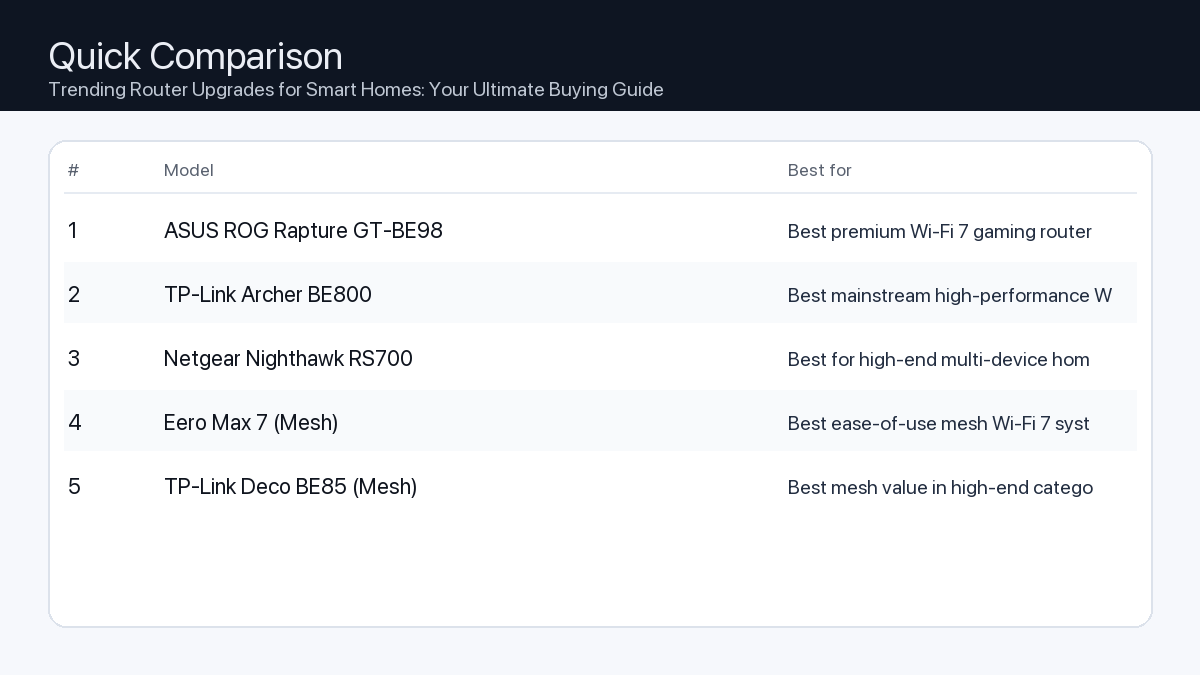
    • Display Quality: Vibrant and accurate screen for reviewing your media.
    • Processing Power: Fast enough for quick photo edits and seamless app switching for social media.
    • Sharing Features: Easy integration with popular social media platforms.

    Example Setup: A phone renowned for its “point-and-shoot” excellence, producing consistently good results in various lighting conditions, with intuitive photo and video editing tools built-in or readily available.

    The Mobile Power User (Gamer/Creator)

    You demand peak performance for graphic-intensive games, video editing, or running multiple demanding apps simultaneously. You need a phone that won’t lag or overheat.

    • Processor Power: The latest flagship-level chip for demanding tasks.
    • RAM: Ample memory for intense multitasking and gaming.
    • Display Refresh Rate: 120Hz for ultra-smooth gaming and scrolling.
    • Cooling System: Efficient heat dissipation to maintain performance.
    • Battery Life & Fast Charging: Sustained power for long sessions and quick top-ups.
    • Storage Options: Large internal storage for games and media, or expandable storage if available (Android specific).

    Example Setup: A device boasting the most powerful available processor, a high refresh rate display, and robust battery life, designed to handle extended periods of intense usage without significant performance drops.

    How We Picked These Trending Phones

    Our selection of trending iPhone and Android phone choices focuses on models that consistently appear in user preference data, industry analysis, and widely respected tech reviews. We thoroughly examine detailed product specification sheets, comparing key hardware components like processor type, camera sensor specifications, display technology, and battery capacity. We also consider the software features offered by both iOS and various Android manufacturers, evaluating their impact on user experience, compatibility with popular accessories, and commitment to long-term software updates. While we do not conduct hands-on testing, our methodology emphasizes verifiable data points, including noted compatibility across ecosystems and common user feedback regarding performance bottlenecks or design considerations.

    FAQ

    Which should I buy: the #1 pick or the best value pick?
    If your budget allows and you prioritize the absolute latest features, maximum performance, and premium build quality, the #1 pick is likely the best choice. However, if you seek excellent performance and a great feature set at a more accessible point, the best value pick often provides a superb balance of capabilities without compromising too much on the core experience. Consider your most critical features and how much you’re willing to invest.
    Is one operating system (iOS vs. Android) objectively better?
    No, neither iOS nor Android is objectively “better” across the board. Each offers distinct advantages. iOS is often praised for its simplicity, consistency, and tight ecosystem integration, while Android is celebrated for its customization, hardware diversity, and open nature. The “better” OS depends entirely on individual user preferences, existing tech ecosystem, and specific feature priorities.
    Can I easily switch between iPhone and Android?
    Yes, switching between iPhone and Android has become much easier than in the past. Both platforms offer tools and guides to help transfer contacts, photos, and messages. While some app data might not transfer directly (especially game progress), core information generally moves smoothly. The biggest adjustment often comes from learning the new operating system’s interface and workflow.

    Final Recommendation

    Ultimately, the “best” trending iPhone or Android phone for you isn’t about universal superiority, but about aligning a device’s strengths with your unique daily needs and preferences. Whether you prioritize a seamless, secure ecosystem with long-term support, or value extensive customization and hardware diversity, both iPhone and Android offer compelling options. Reflect on your core usage habits – from how you capture memories to how you manage your professional life – and choose the phone that empowers you to do more, effortlessly. By focusing on the practical considerations outlined in this guide, you can confidently select a trending smartphone that truly enhances your everyday digital experience.

    Related Guides

    Keep reading with these related buying guides: